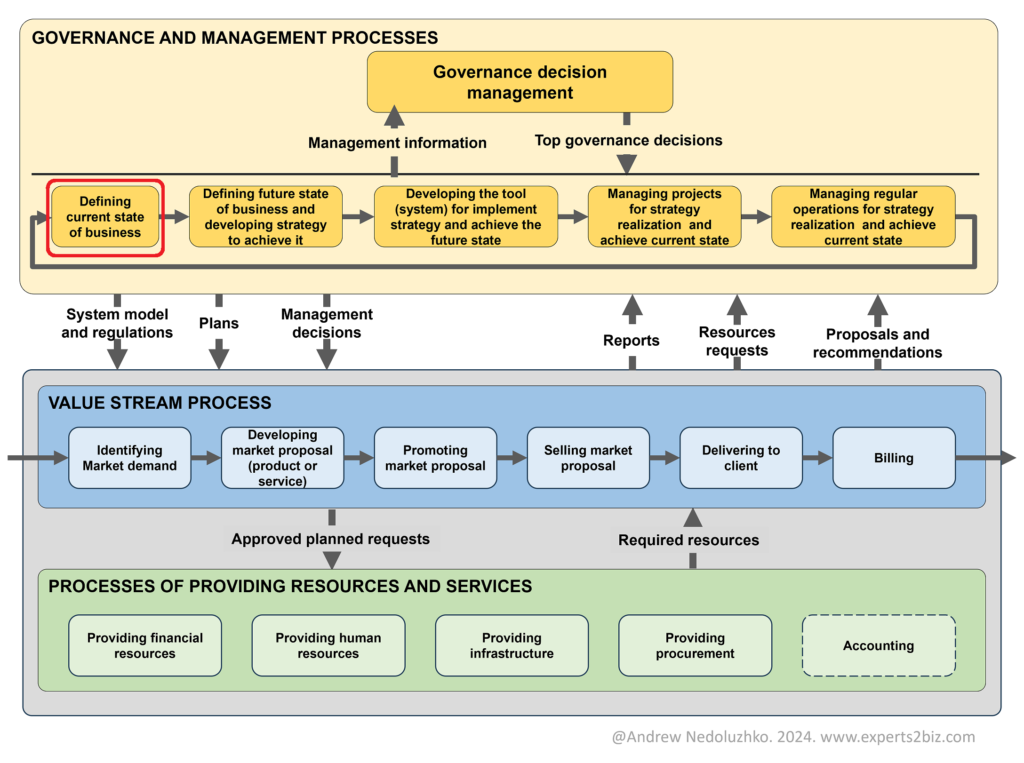
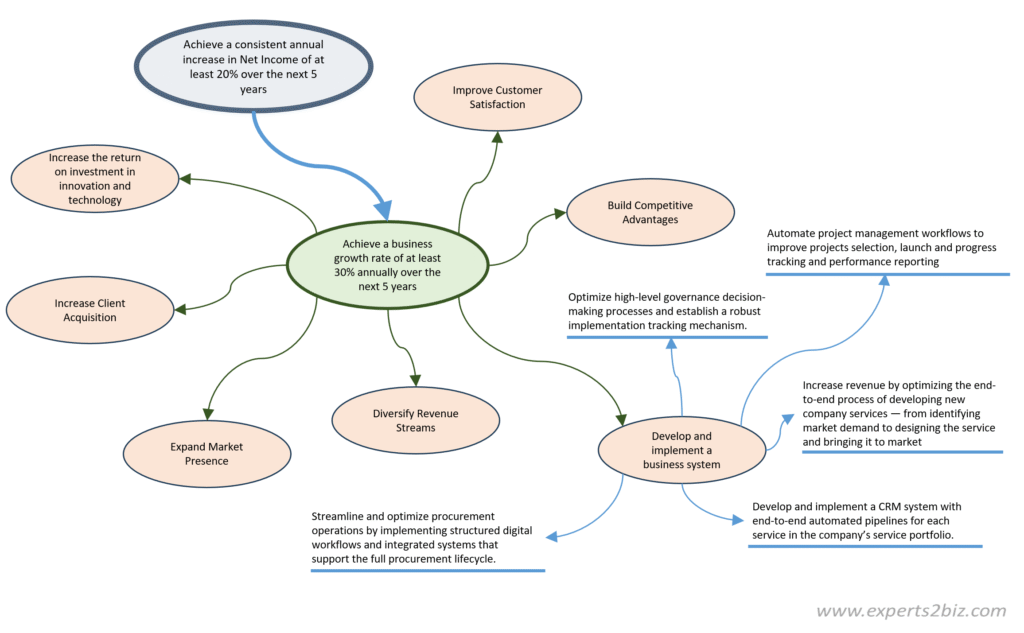
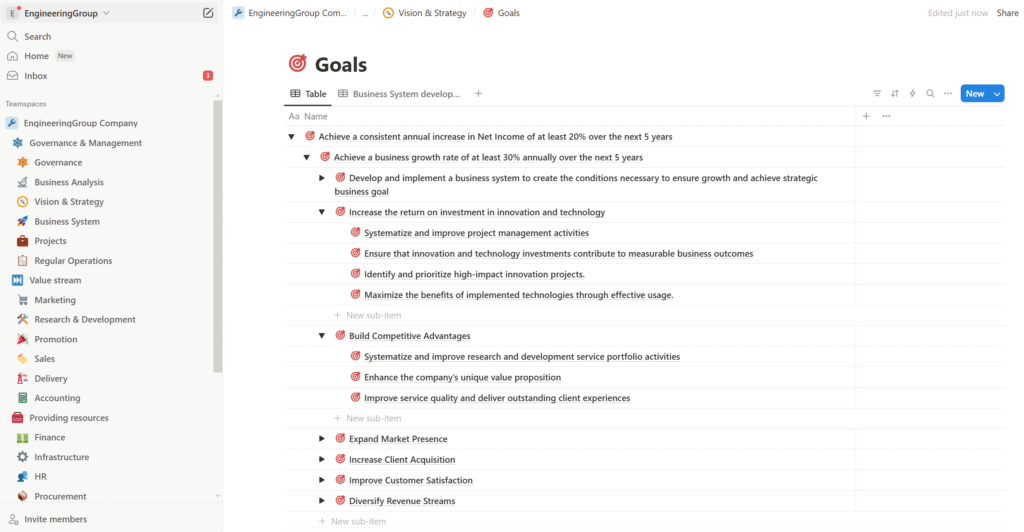
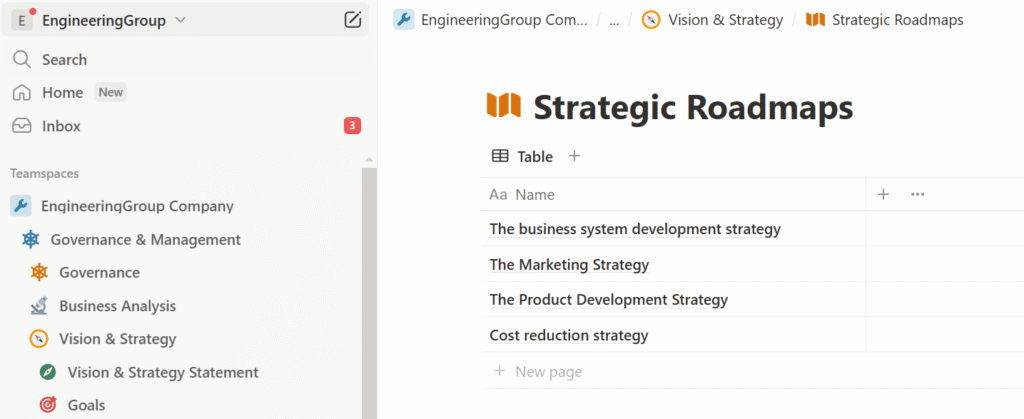
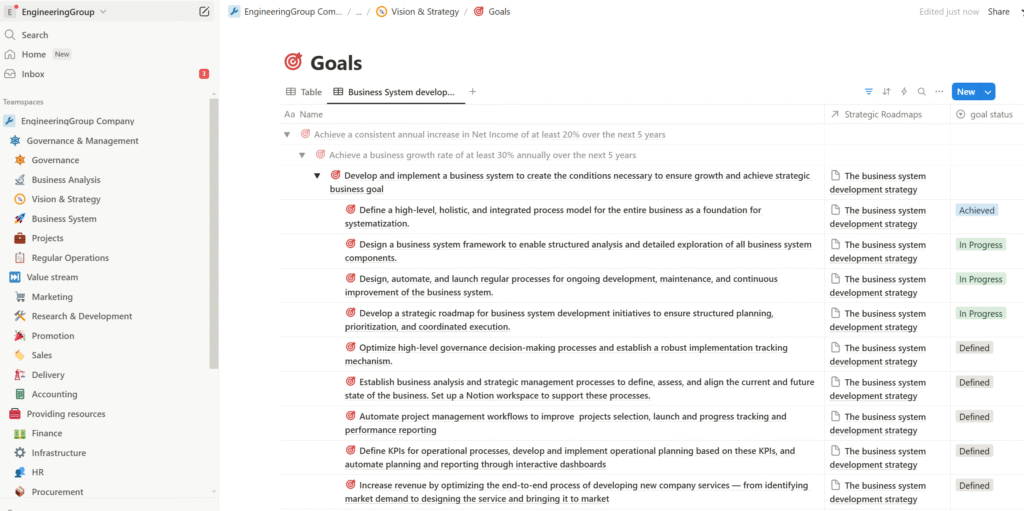
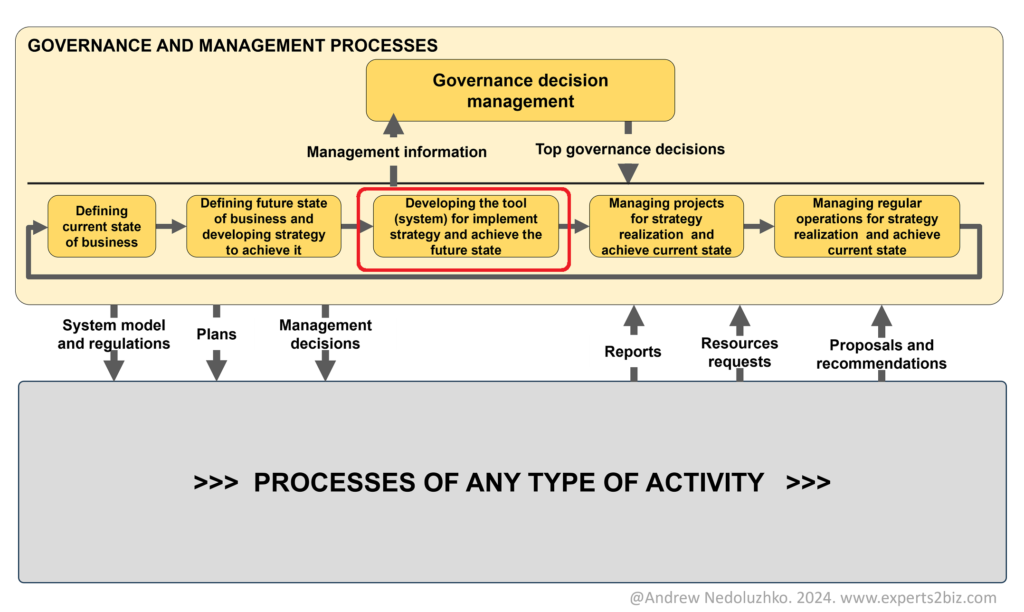
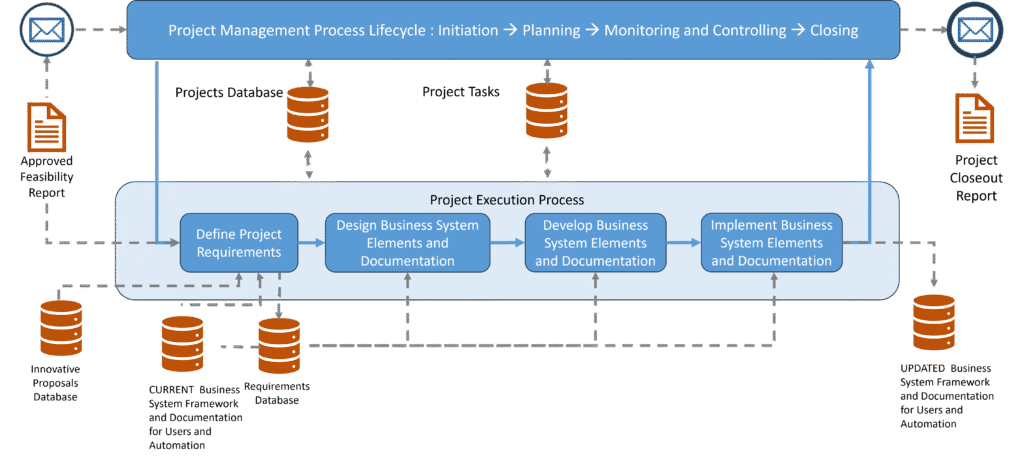
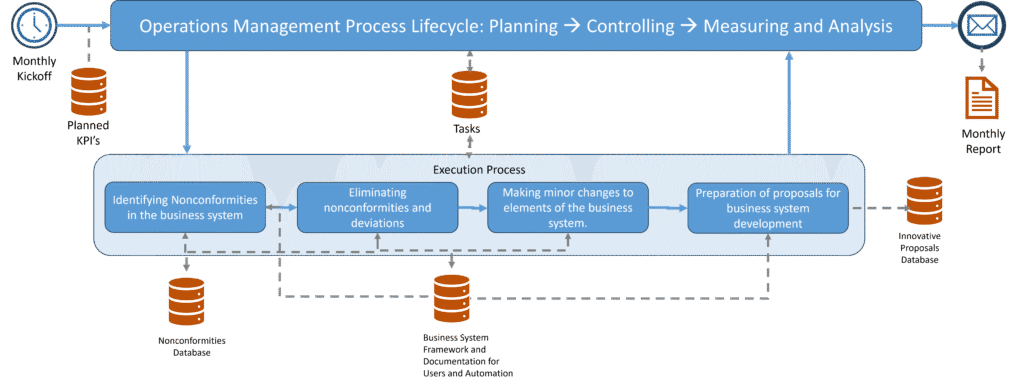
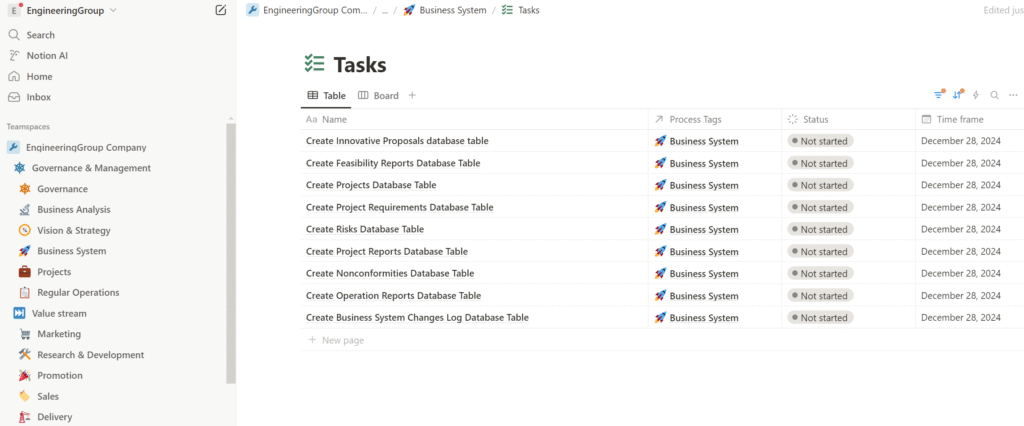
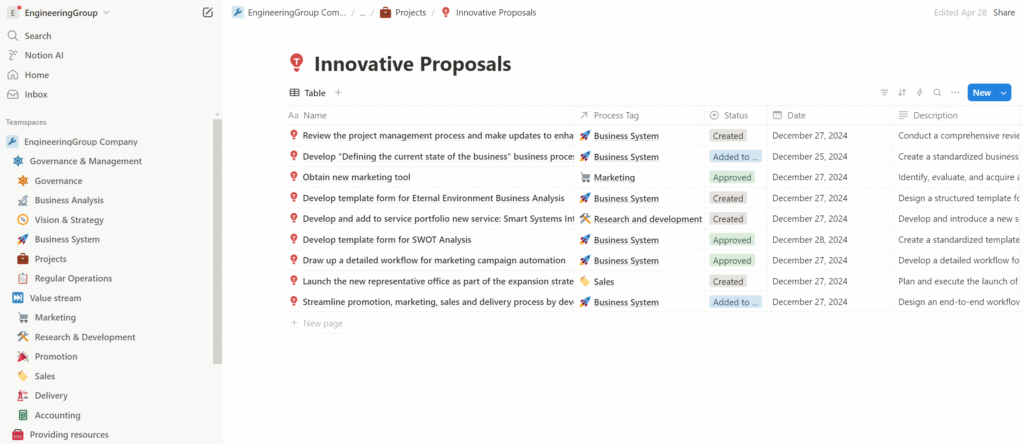
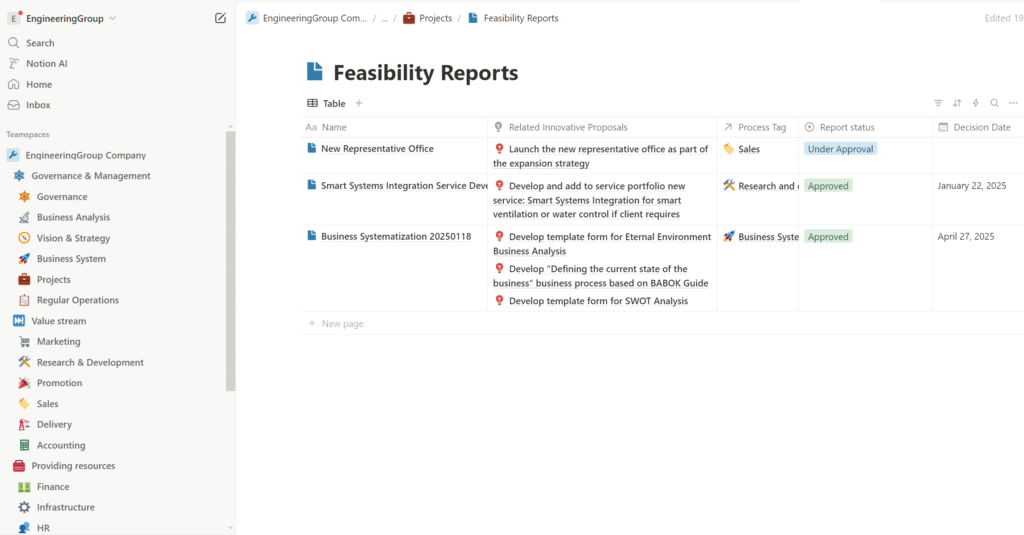
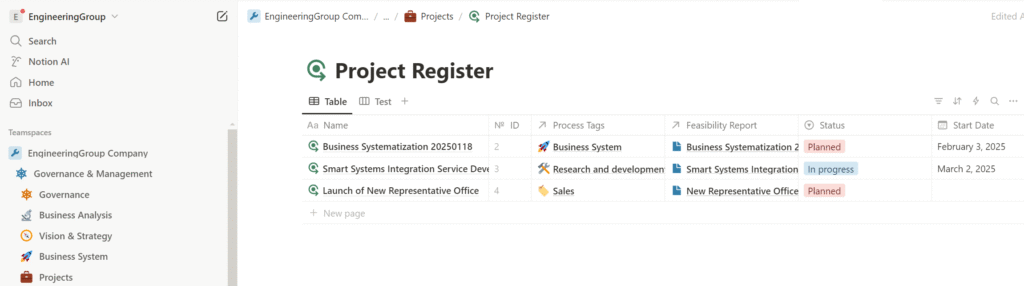
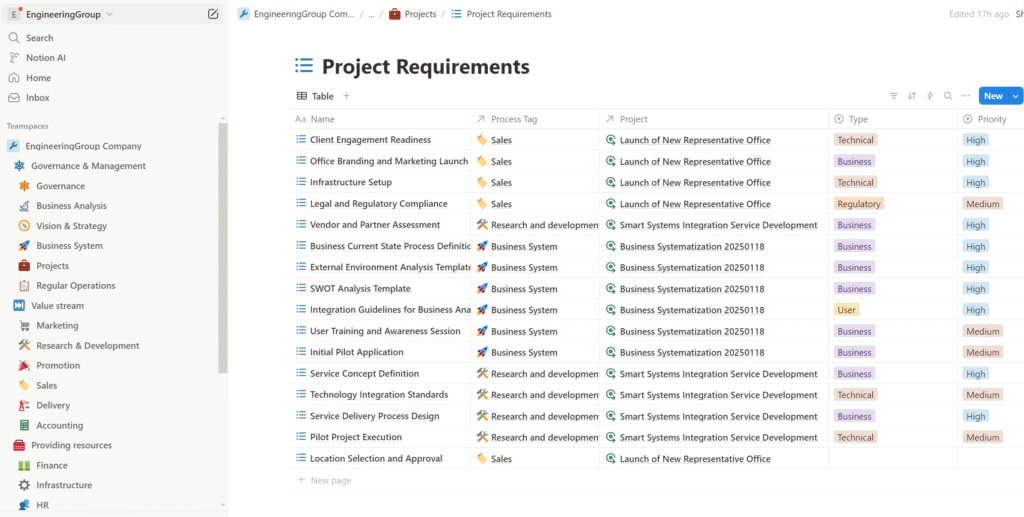
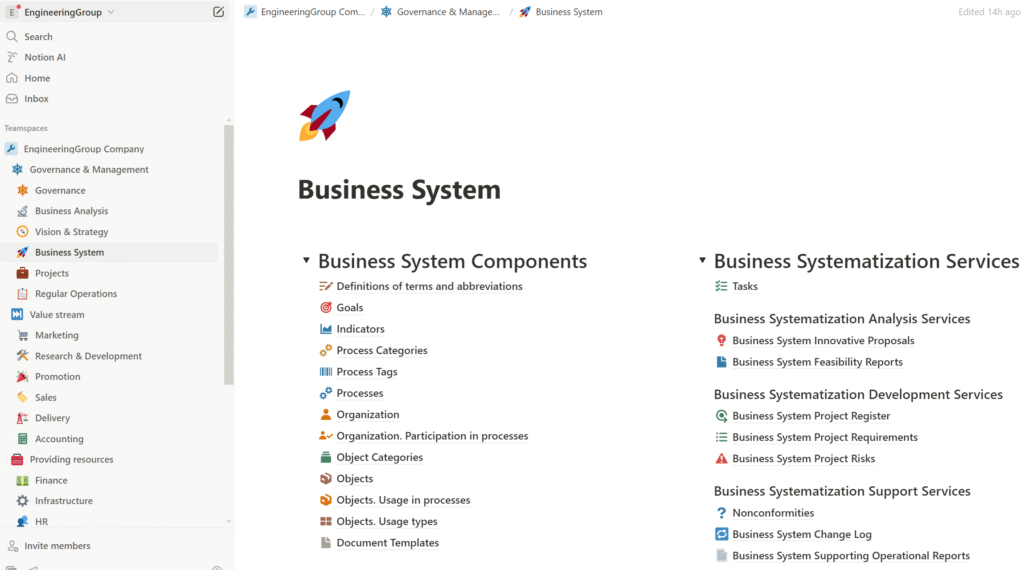
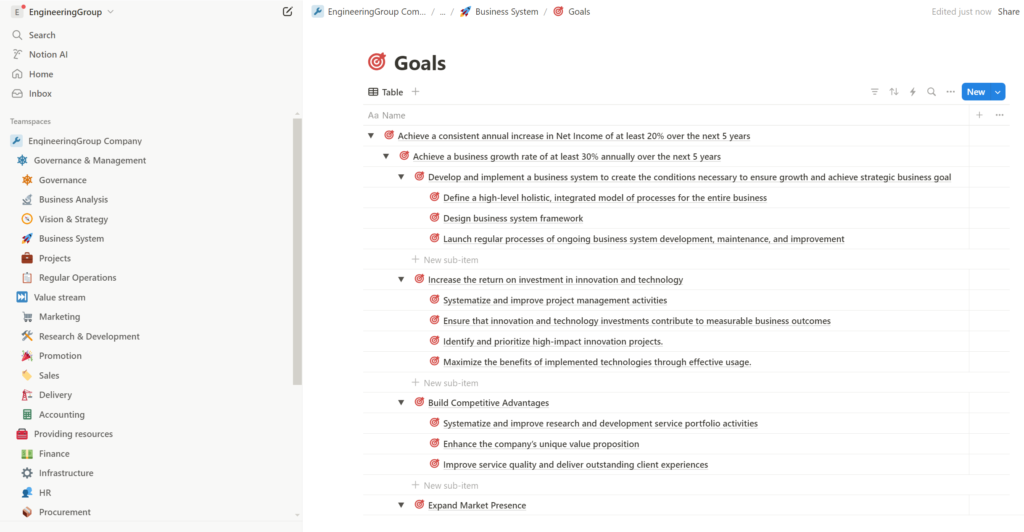
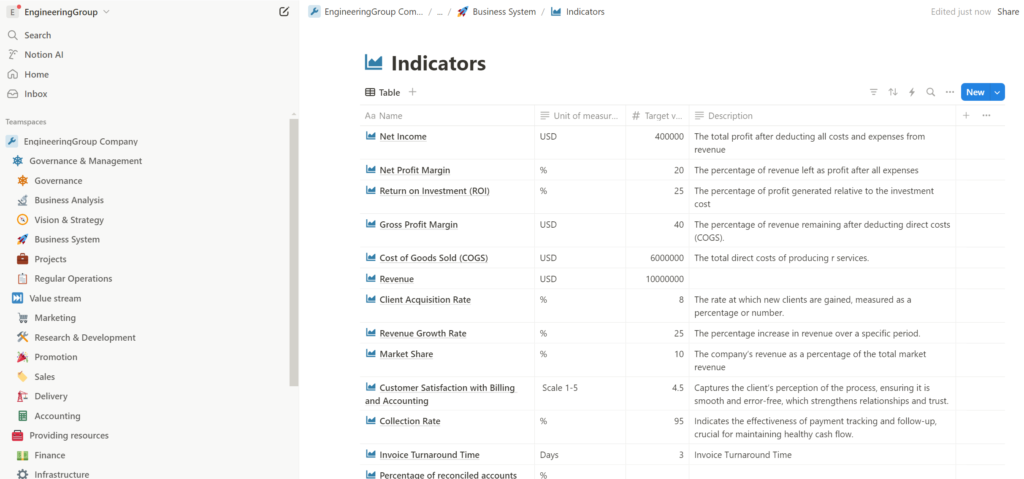
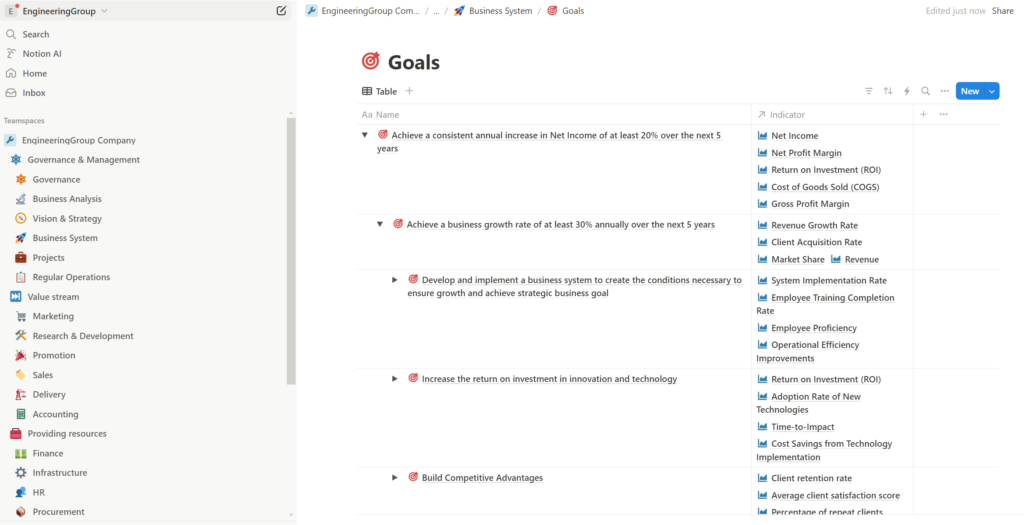
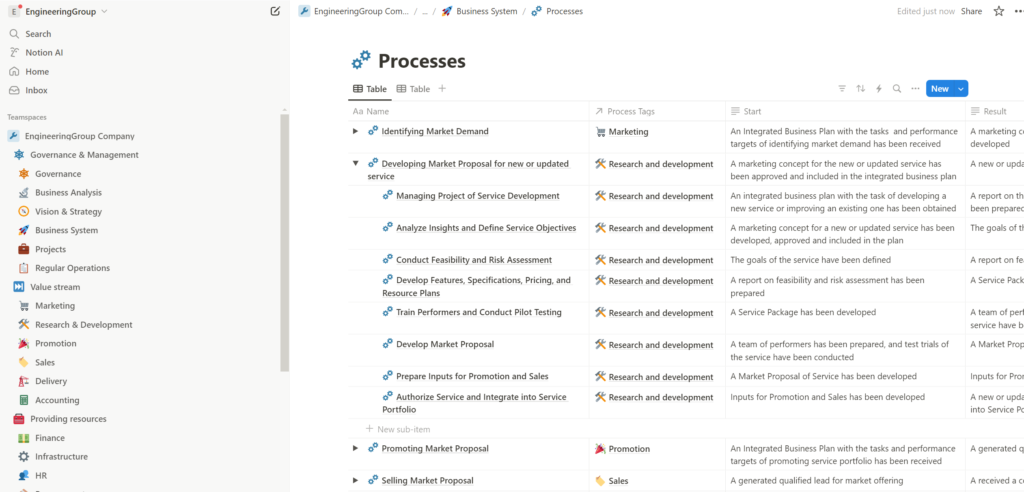
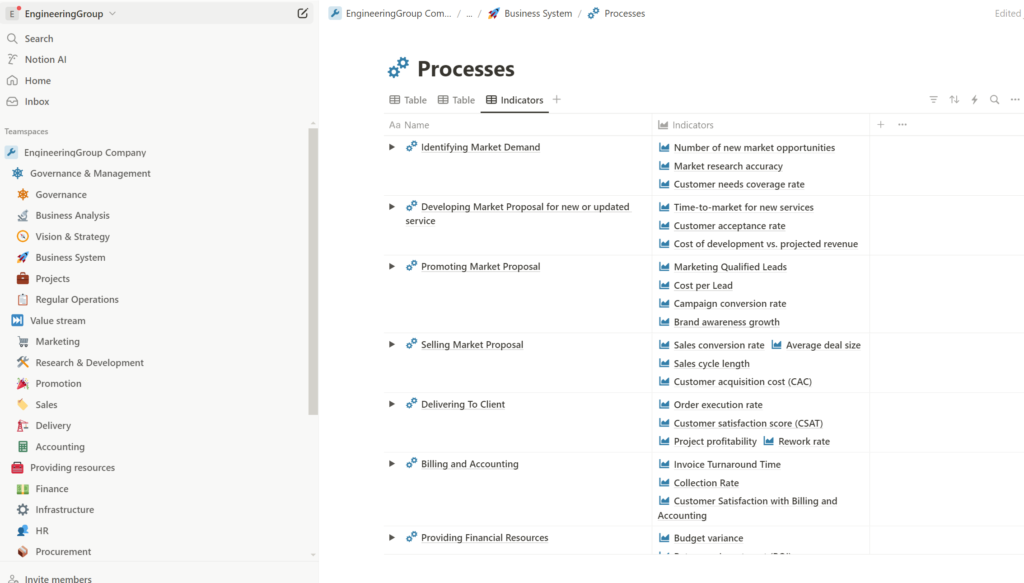
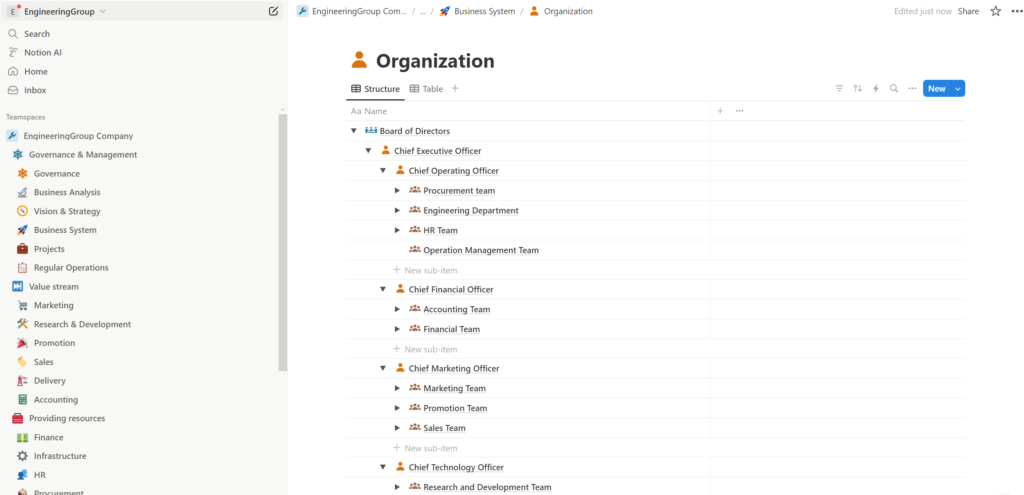
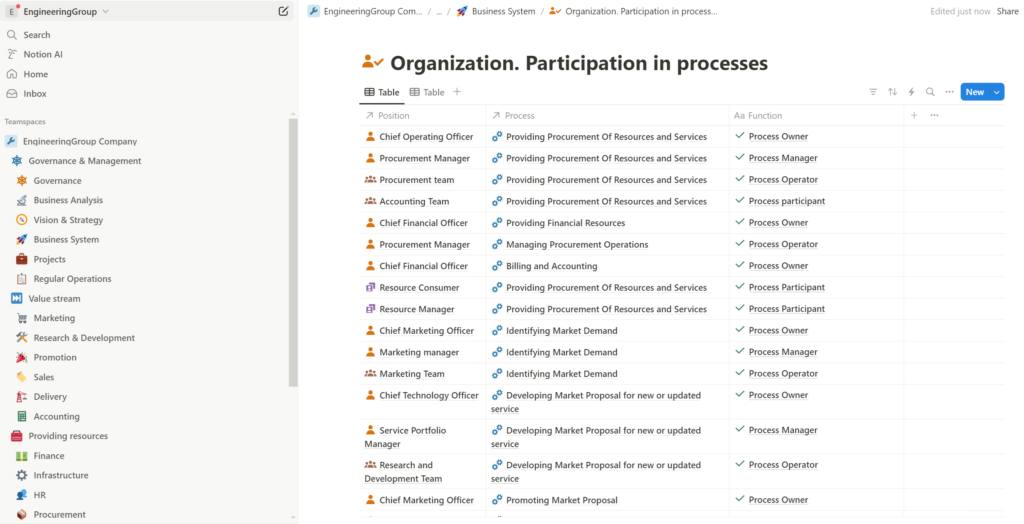
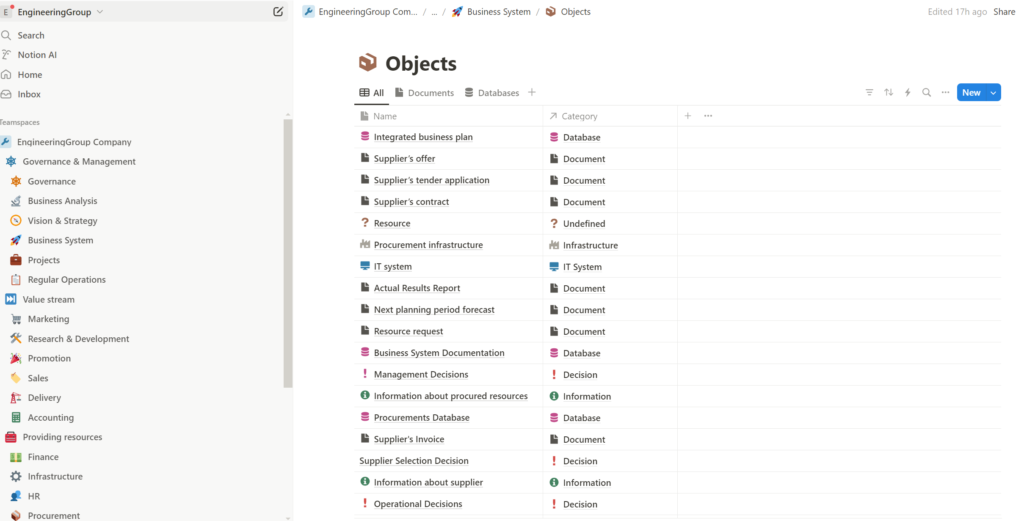
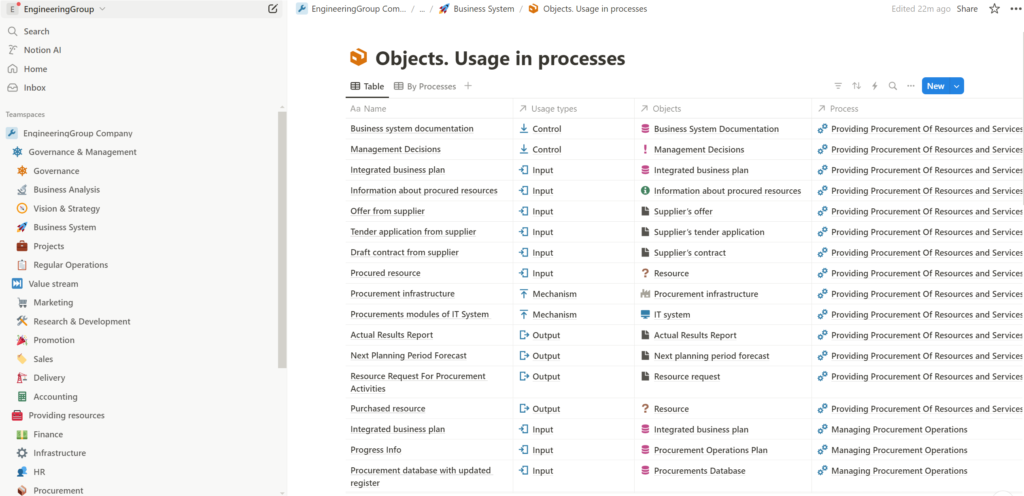
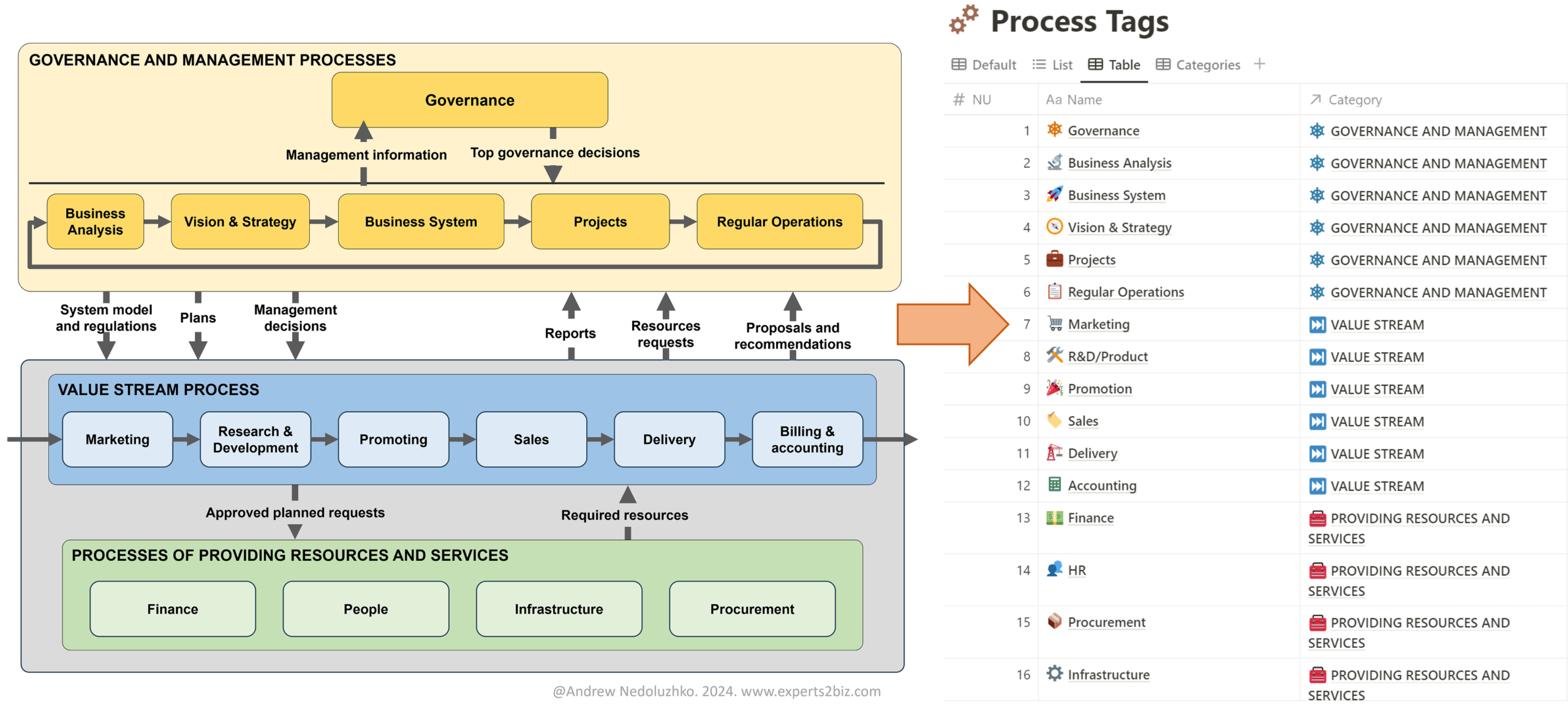
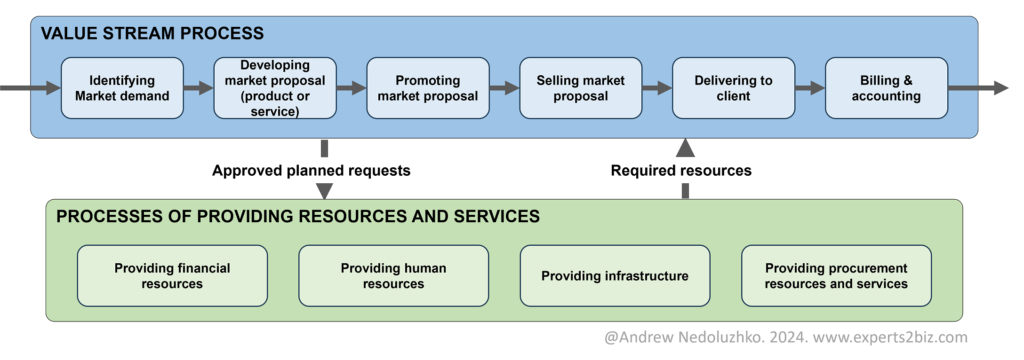
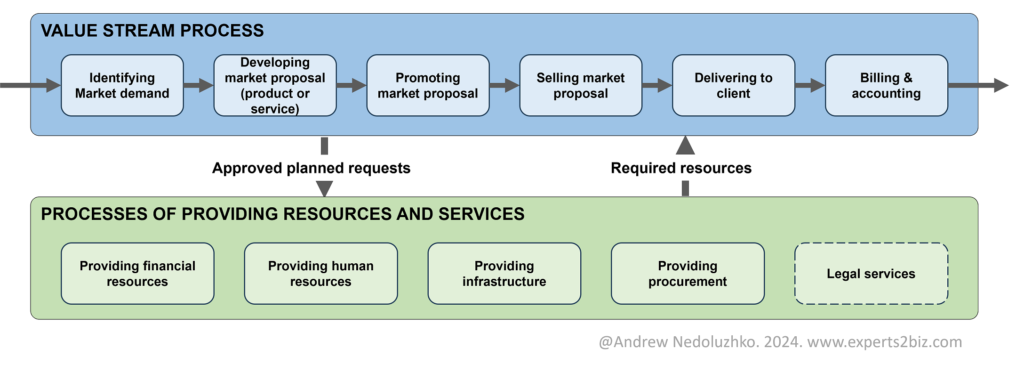
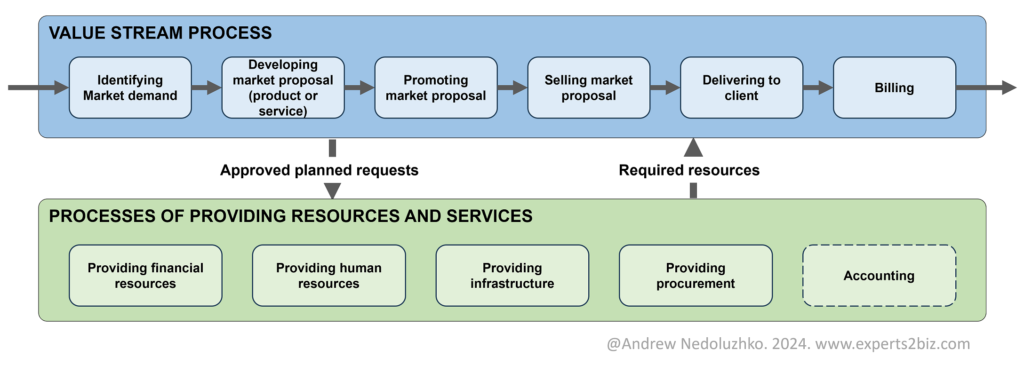
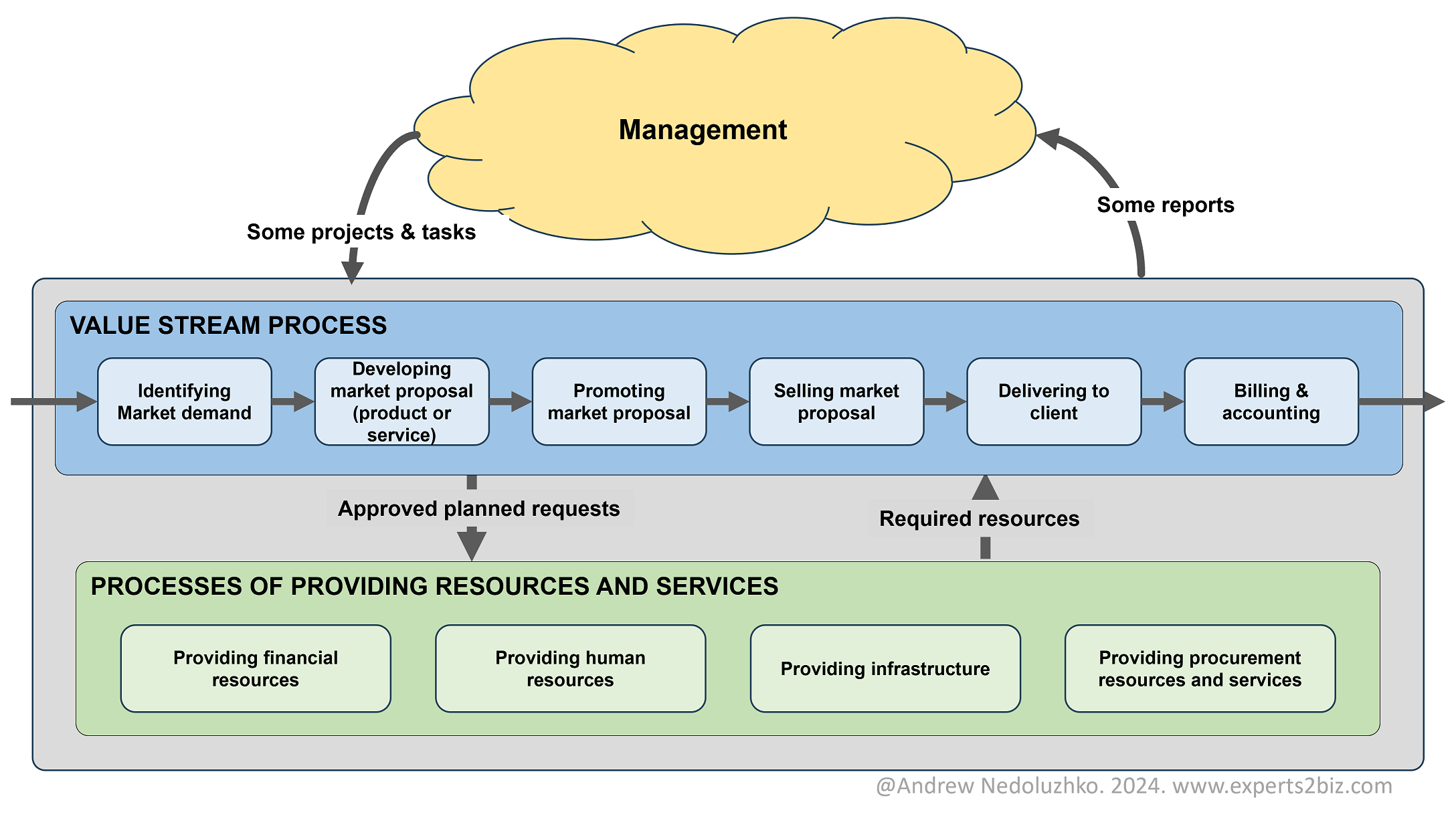
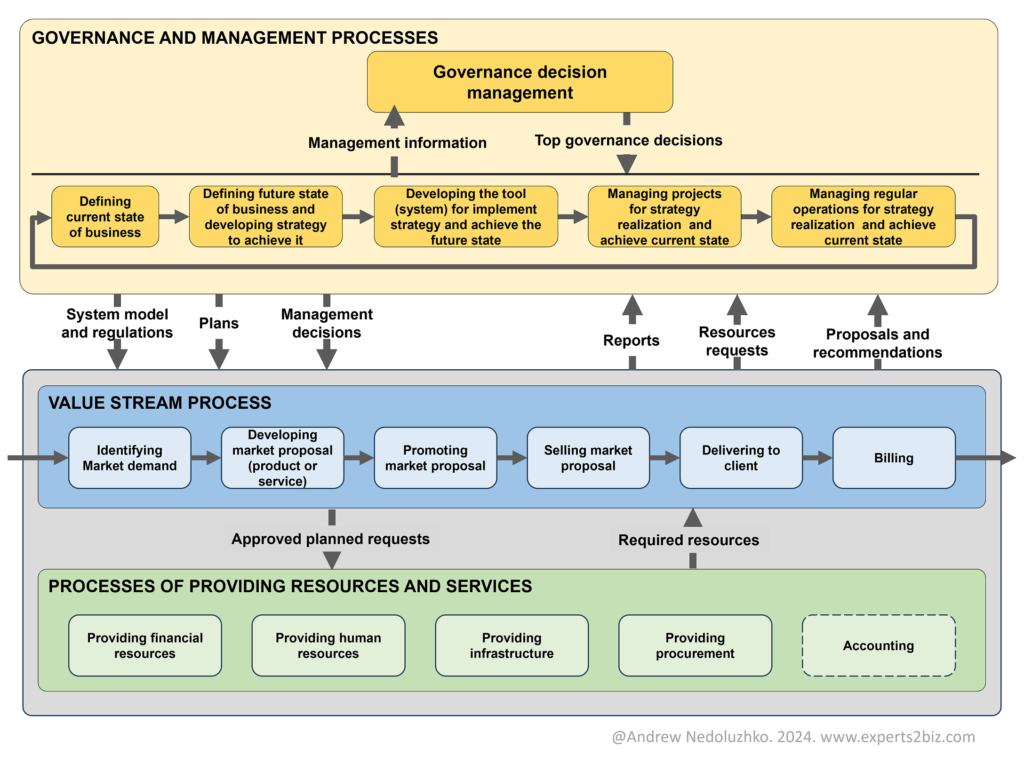
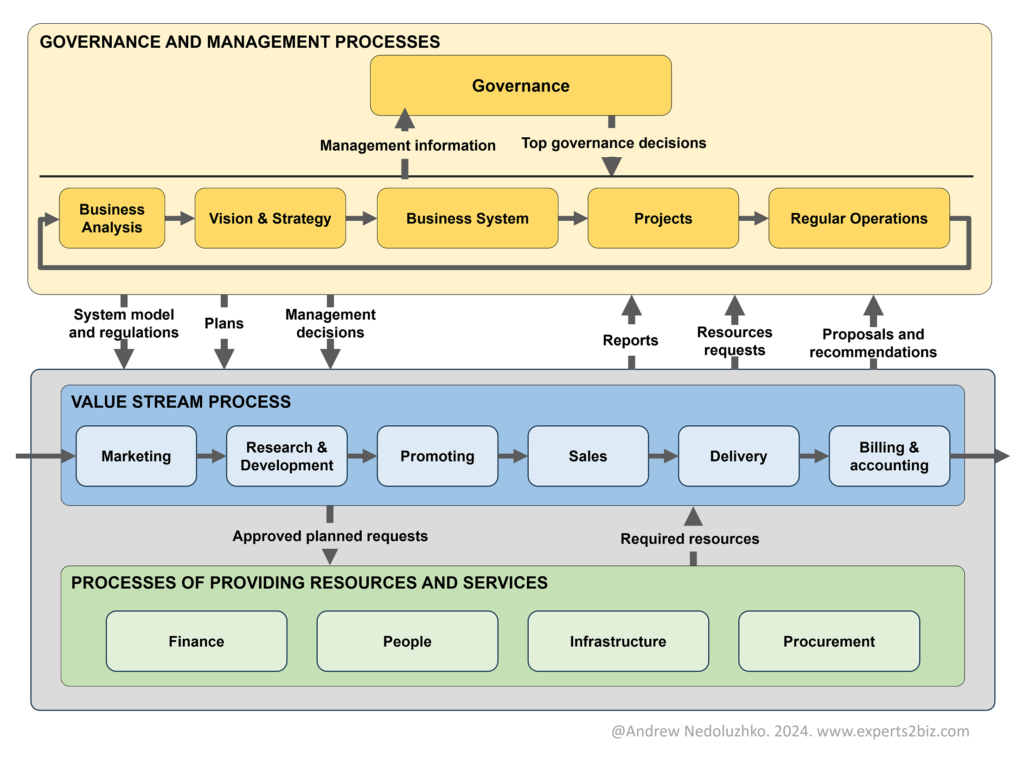
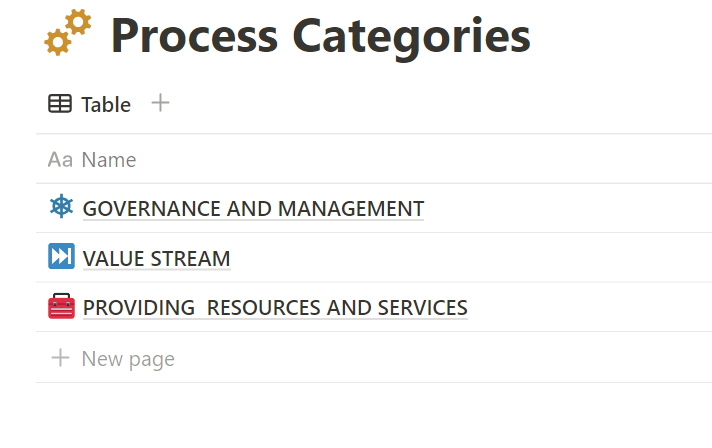
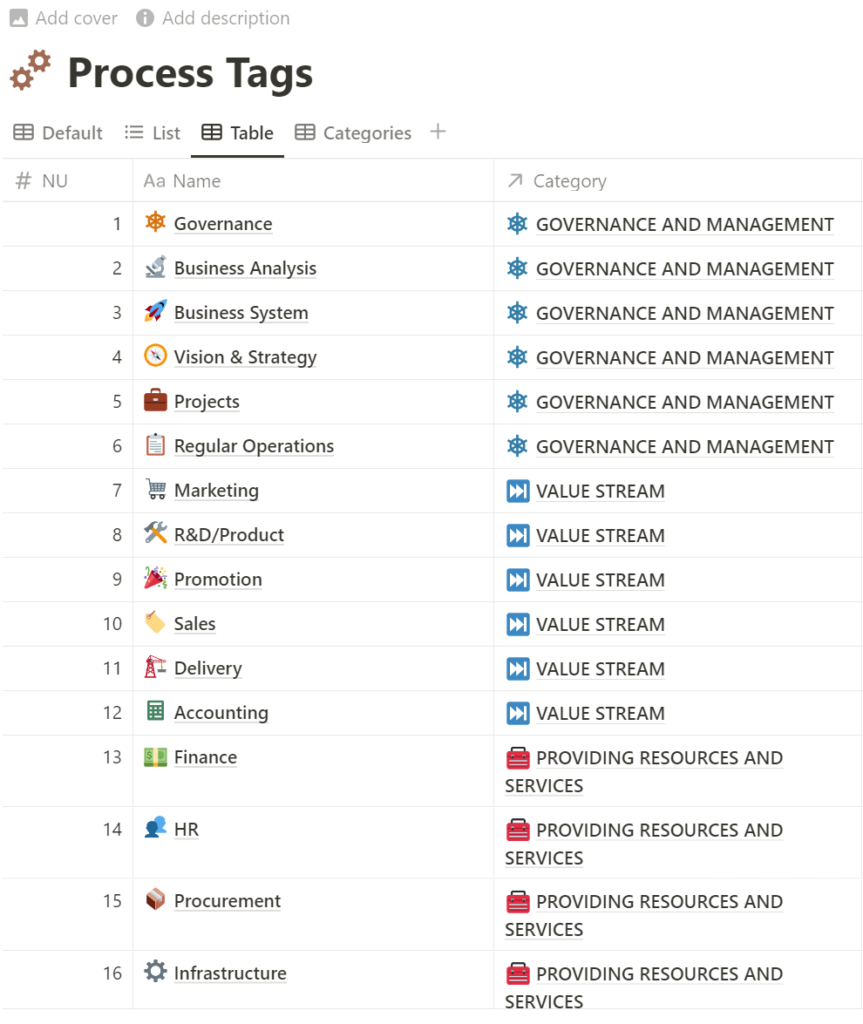
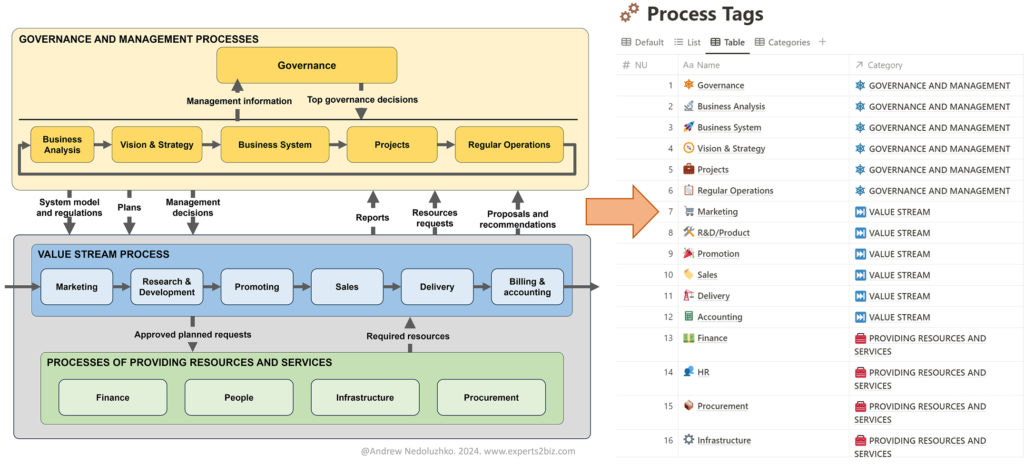
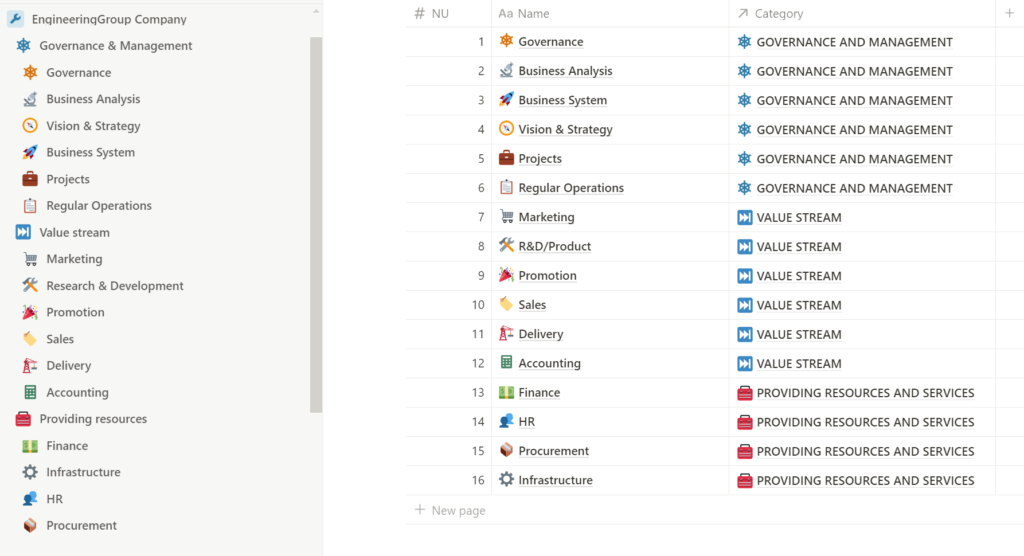
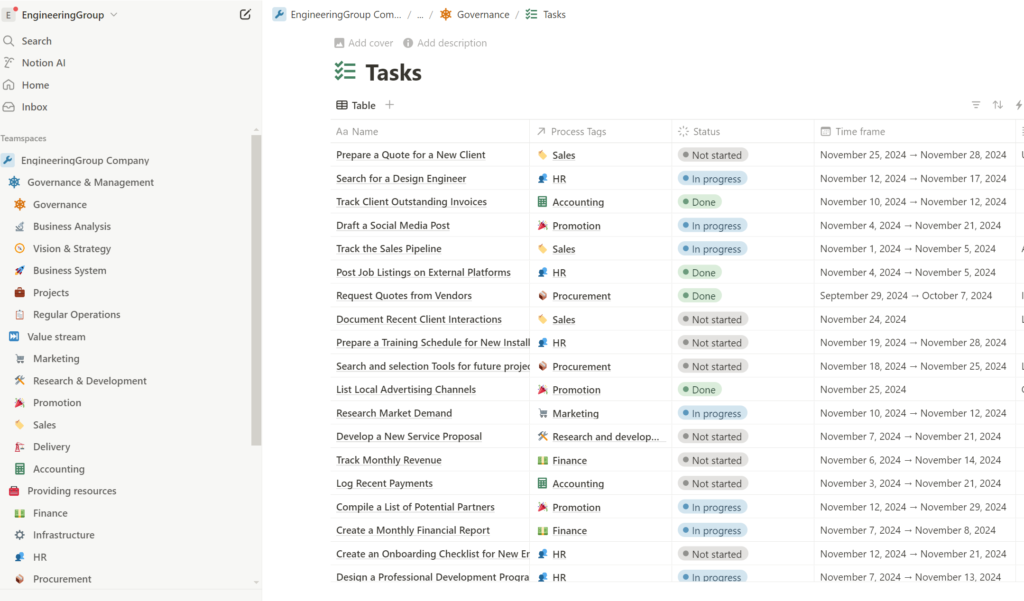
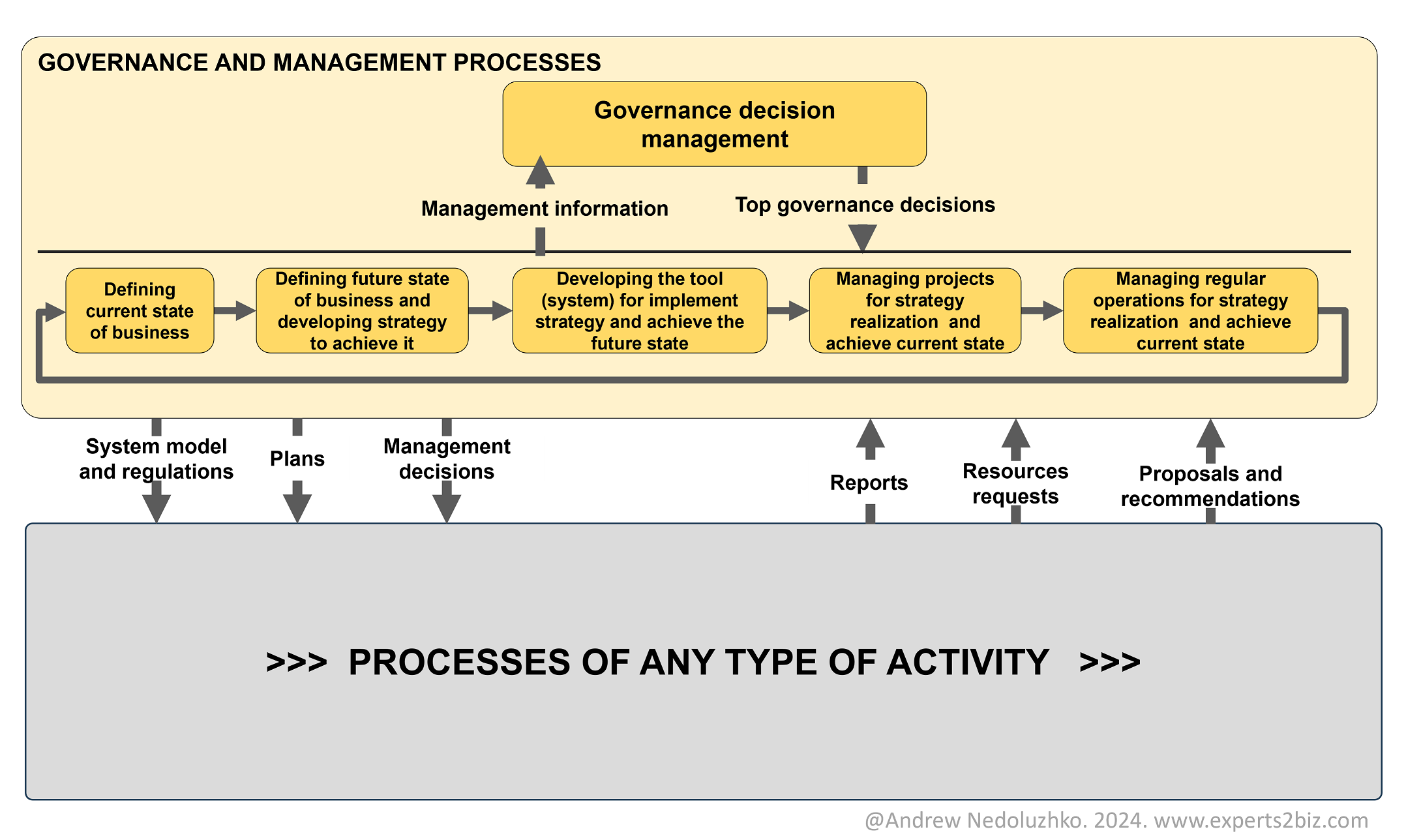
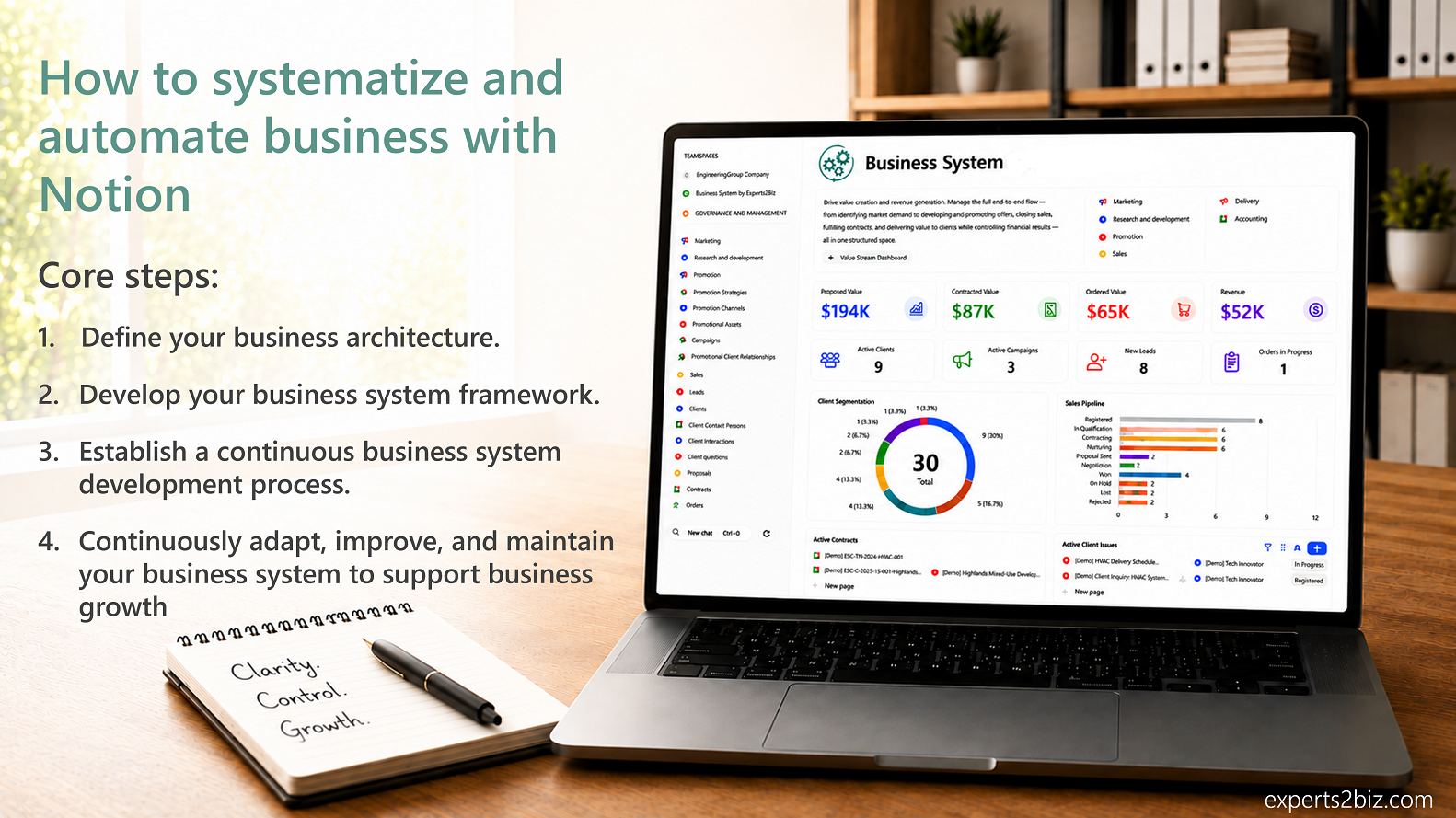
In this article, we explore best practices for workflow automation to support collaborative work, using a real-world example. This example is part of an engineering company’s business case on how to systematize and automate the entire business. Automating a single business process is one thing—automating the entire business through a network of interconnected workflows is quite another. In our business process model, the entire company is structured into 16 high-level business process groups. Full automation means that each of these groups includes 4 to 12 workflows, working together to achieve a fully automated business system. To make this possible and efficient, we must rely on a structured, systematic approach to workflow automation and choose appropriate techniques and best practices.
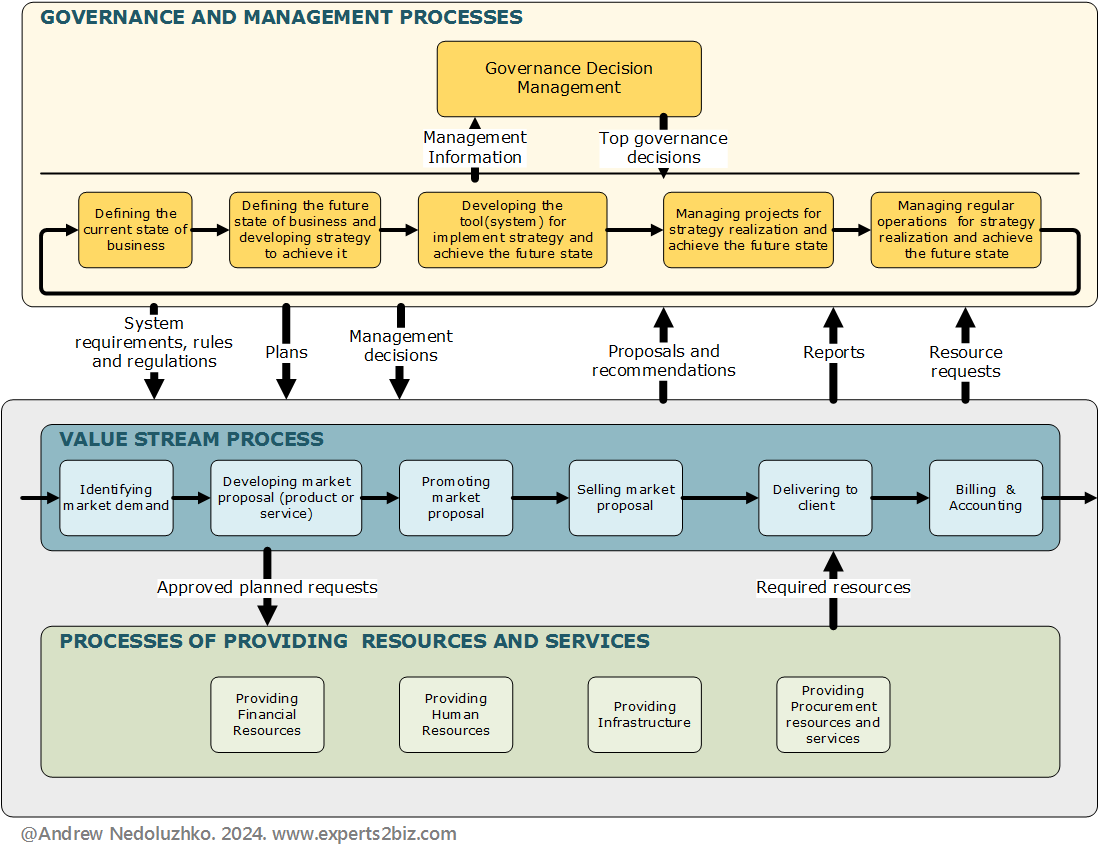
Now, we have three main approaches to automating workflows in Notion:
- Using Notion’s native built-in automation features – such as database automations, buttons, templates, and reminders.
- Integrating with external automation platforms – like Make.com, Zapier, or n8n, which allow for more complex logic and connections with other tools.
- Combining both internal and external tools – to maximize efficiency and flexibility by leveraging the strengths of each approach.
Of course native built-in automation suits better for automation of the collaborative workflows and using external automation platforms is much better for integration with others different systems tools and AI automation
Workflow Automation Example
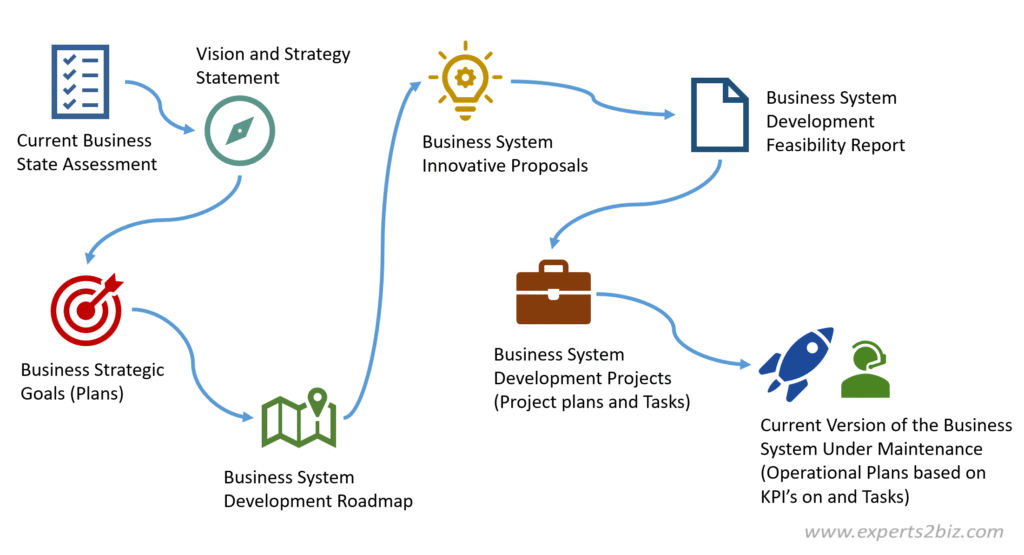
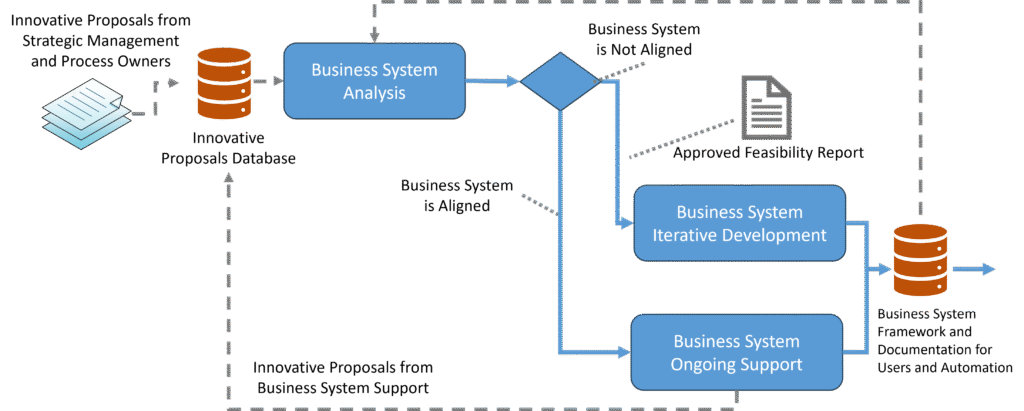
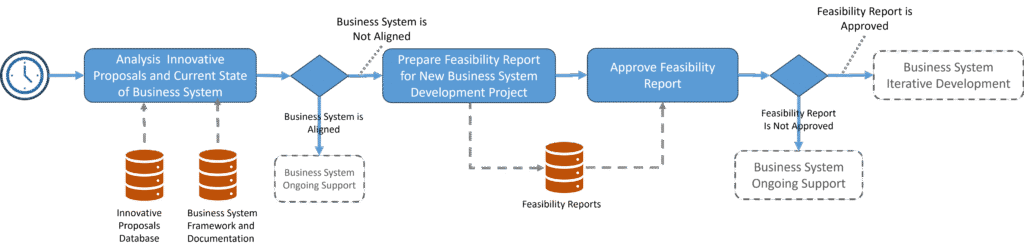
In one of the previous articles, I presented the conceptual diagram of the process ‘Business System Analysis,’ and in this article, we turn that process into an automated collaborative workflow in a Notion workspace.
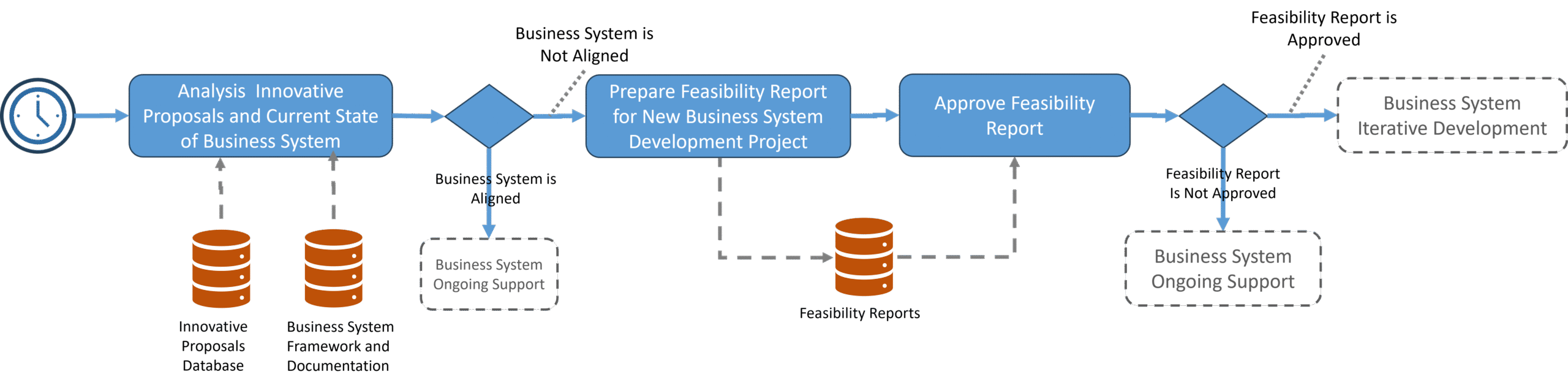
To better prepare for automating this process, it’s good practice to design a more detailed workflow scenario and develop a more precise workflow diagram. This helps clarify requirements, refine the overall picture, and make the automation process easier.
Scenario
Precondition: The scheduled monthly review date for innovative proposals has arrived
Flow:
- The workflow runs and generates a task for the business analyst: ‘Review Current Innovative Proposals and Make a Decision to Start Feasibility,’ with two possible outcomes — Start Feasibility Study or Cancel Feasibility Study. The ‘Start Feasibility Study’ decision continues the workflow, while the ‘Cancel Feasibility Study’ decision ends the workflow with a cancellation explanation added in the task notes.
- If the Business Analyst chooses the ‘Start Feasibility Study’ decision, the workflow generates a new task—’Prepare New Feasibility Report’—for the Business Analyst. To minimize manual work, the workflow also creates a new Feasibility Study document in the corresponding database table with the default status ‘In Preparation’ and opens it directly in the Notion window, allowing the analyst to begin working on the report immediately.
- When the Feasibility Report is ready, the Business Analyst completes the task ‘Prepare New Feasibility Report’ by clicking the button ‘Feasibility Report Ready for Review.’ The workflow then generates a new task—’Review Feasibility Report’—assigned to the BA & Systematization Manager and updates the Feasibility Report’s status to ‘Under Review’.
- After reviewing the Feasibility Report, the BA & Systematization Manager makes a decision: either ‘Feasibility Report Ready for Approval’ or ‘Correction of Feasibility Report Required’:
- If the decision is ‘Ready for Approval,’ the workflow generates a new task—’Approve Feasibility Report’—assigned to the CEO, and updates the Feasibility Report’s status to ‘Under Approval.’
- If the decision is ‘Correction Required,’ the workflow generates a new task—’Correct Feasibility Report’—assigned to the Business Analyst, and updates the status to ‘Under Correction.’ Once the correction task is completed, the workflow returns to this review step and repeats the decision process.
- The CEO makes one of two decisions:
- ‘Approve Feasibility Report’ – The workflow updates the Feasibility Report’s status to ‘Approved,’ sends notifications to the Business Analyst and the BA & Systematization Manager, and triggers the next workflow to create and track a new project based on the approved Feasibility Report.
- ‘Reject Feasibility Report’ – The workflow updates the status to ‘Rejected,’ and sends notifications to the Business Analyst and the Manager. In this case, the Innovative Proposal on which the Feasibility Report was based may be revised and resubmitted the following month.
Postconditions:
- Option 1: The Feasibility Report is approved, and a new Project is created in the Project Register database.
- Option 2: The Feasibility Report is rejected.
- Option 3: The Feasibility Report is not initiated.
This scenario helps us design a more detailed and precise workflow diagram for implementing this process in Notion.

Sometimes, like many other No-Code/Low-Code tools, Notion doesn’t support fully customizable or sophisticated UI/UX solutions. However, there are always creative ways to work around these limitations — here are a few of mine.
Workflow Tasks.
User tasks are the core of any collaborative workflow. The analysis of the scenario reveals five key decision-making tasks:
- Review Current Innovative Proposals and Decide Whether to Start a Feasibility Study.
- Prepare New Feasibility Report.
- Review Feasibility Report.
- Correct Feasibility Report.
- Approve Feasibility Report.
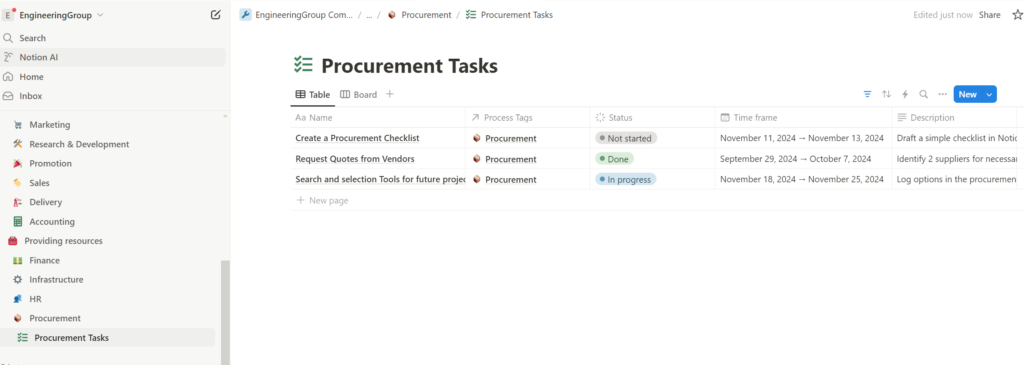
My first best practice is using a separate task list for each workflow. This approach allows us to build a relation between Feasibility Reports and their specific task list, improving both usability and process management. As a result, there will be multiple task lists across the Notion workspace. Some might find this inconvenient, since users typically prefer to see all their tasks in one place. However, Notion provides an elegant solution: the “My Tasks” widget. It aggregates tasks assigned to a user from all task lists across the workspace into a single, personalized view on their home page—solving the problem of scattered task visibility.
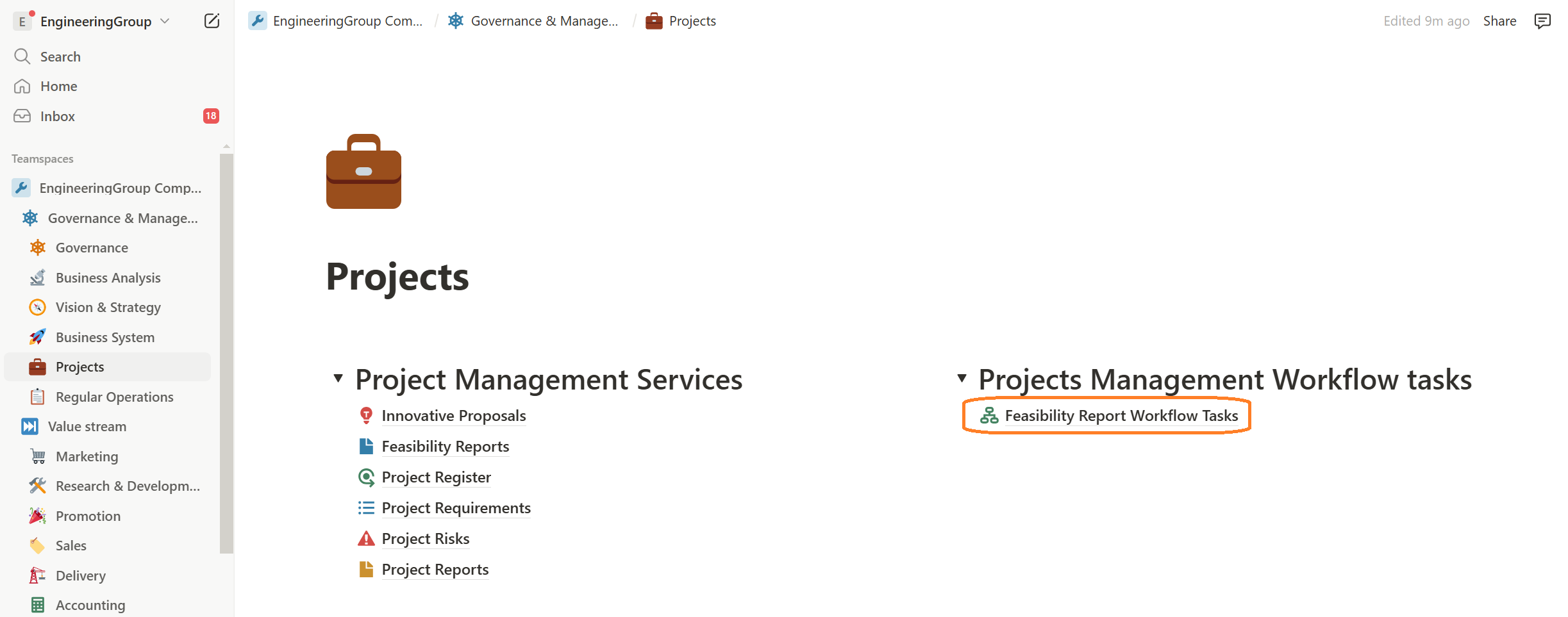
Since Feasibility Reports relate to project management, in this section we create a “Feasibility Report Workflow Tasks” database to manage the process of “Current State Analysis and Feasibility Report for Business System Development”.
Task Templates
Each workflow task may some unique features and one my best practices to implement this is using the database item templates in task lists to create a template task form for each workflow task with some unique functionality. It gives us some opportunities because we can enhance UI / UX that restrict by standard Notion features and increase effect of using workflow by users. But ability to use templates in automation is currently available only for native automation not for internal platform like make.com, Zapier, n8n etc.
Each workflow task may have unique features, and one of my best practices is to use database item templates in task lists to create a custom task form for each workflow step with specific functionality.
This approach offers several benefits:
- It allows us to enhance the UI/UX beyond standard Notion limitations
- It increases the effectiveness and value of the workflow for users
- It enables easy and fast adjustments to individual workflow tasks when needed
However, please, note that template usage in automation is currently supported only in Notion’s native automation, and not in external platforms like Make.com, Zapier, or n8n.
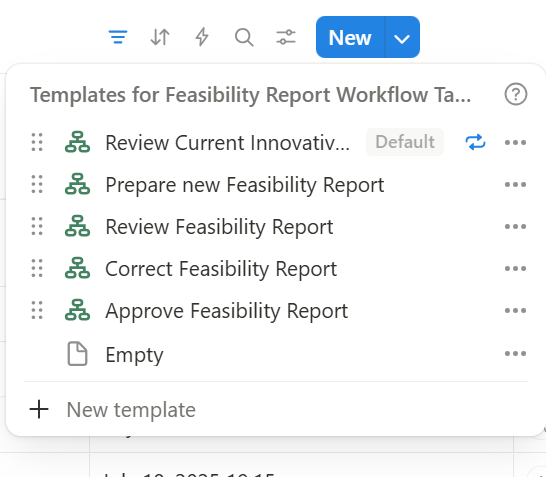
Figure 5 – Tasks datatabase templates for workflow
Setting Default Task Properties Using Templates
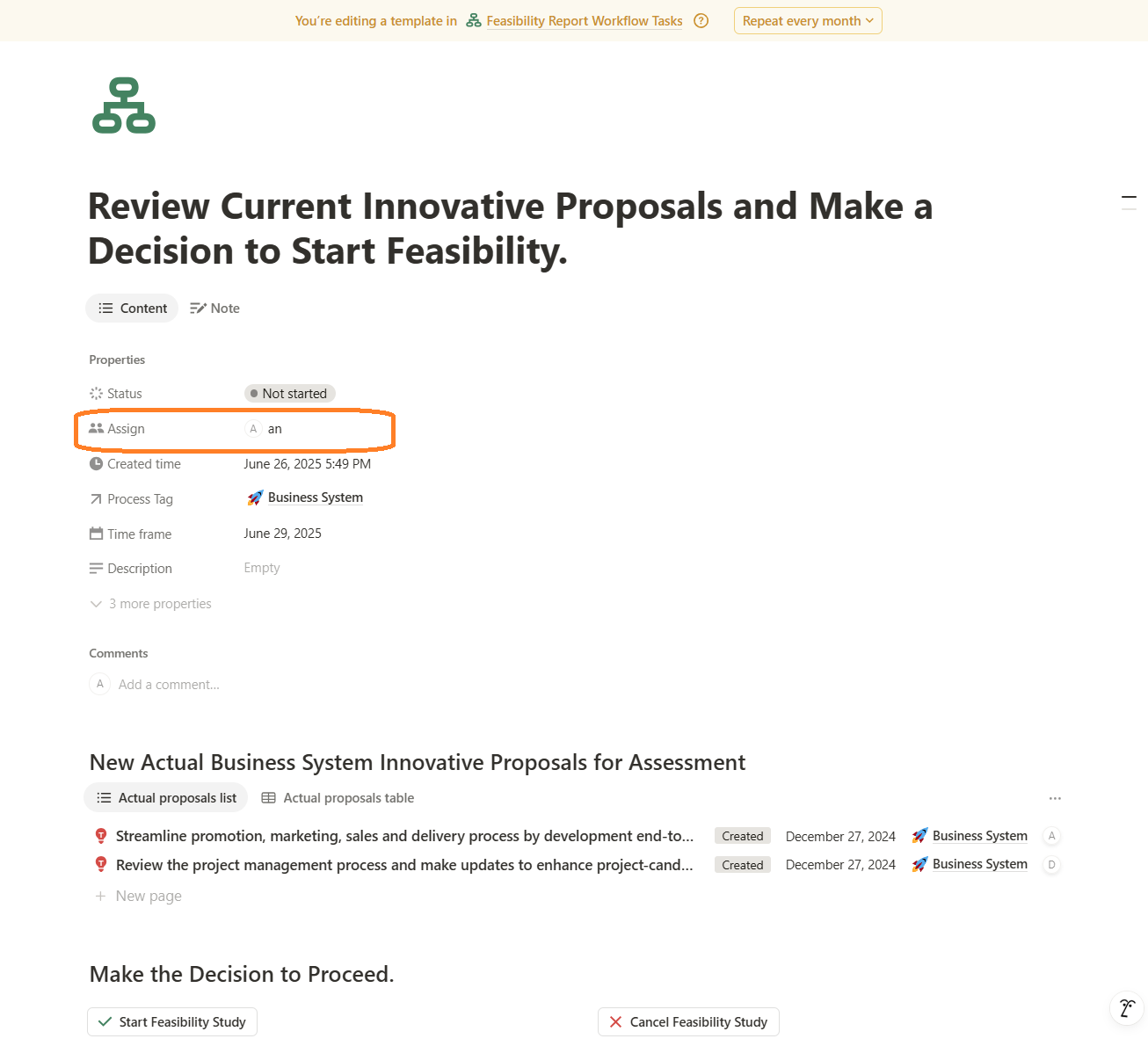
We can configure specific properties within each task template. For example, a useful approach is to define which process actor should be assigned to each workflow task. If a process change requires updating the task performer, you can simply modify this property in the task template without altering the workflow logic
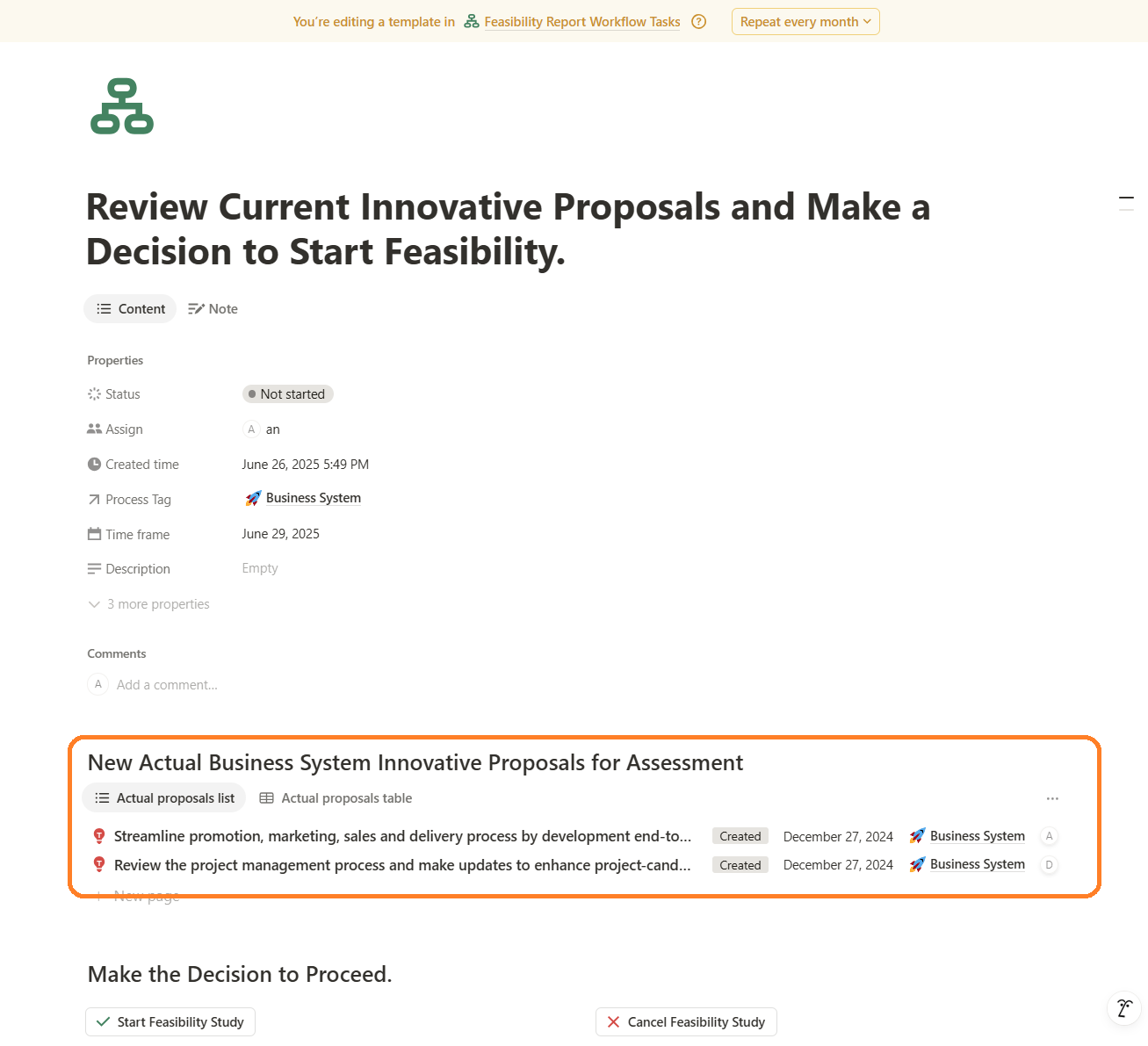
Embedded Views from Other Notion Databases into Tasks to Provide Contextual Data
Embedding views from other Notion databases into tasks to provide contextual data to user. For example, in the task ‘Review Current Innovative Proposals and Make a Decision to Start Feasibility’, we display the latest business system innovative proposals directly within the task. This is convenient because the user doesn’t need to navigate to the Innovative Proposals database or manually filter for new, relevant items — everything they need is immediately visible within the task. It’s a powerful feature I love to use.
Functional buttons in the task form
Typically, the actions triggered by these buttons may include:
- Confirming actions before automation begins — you can set up custom confirmation messages and buttons based on the specific workflow requirement.
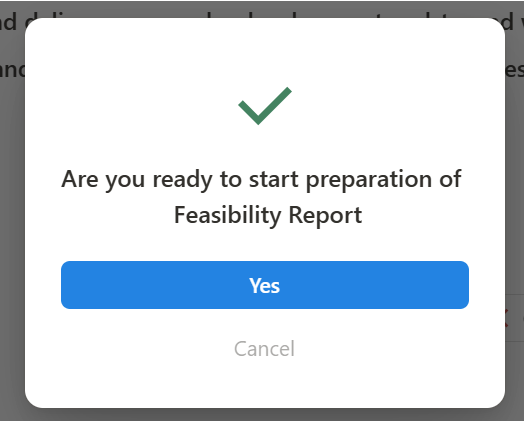
- Updating the current task by marking it as completed and recording the result with workfow actions — a valuable practice for tracking workflow progress.
- Creating the next task or finalizing the workflow, depending on the scenario.
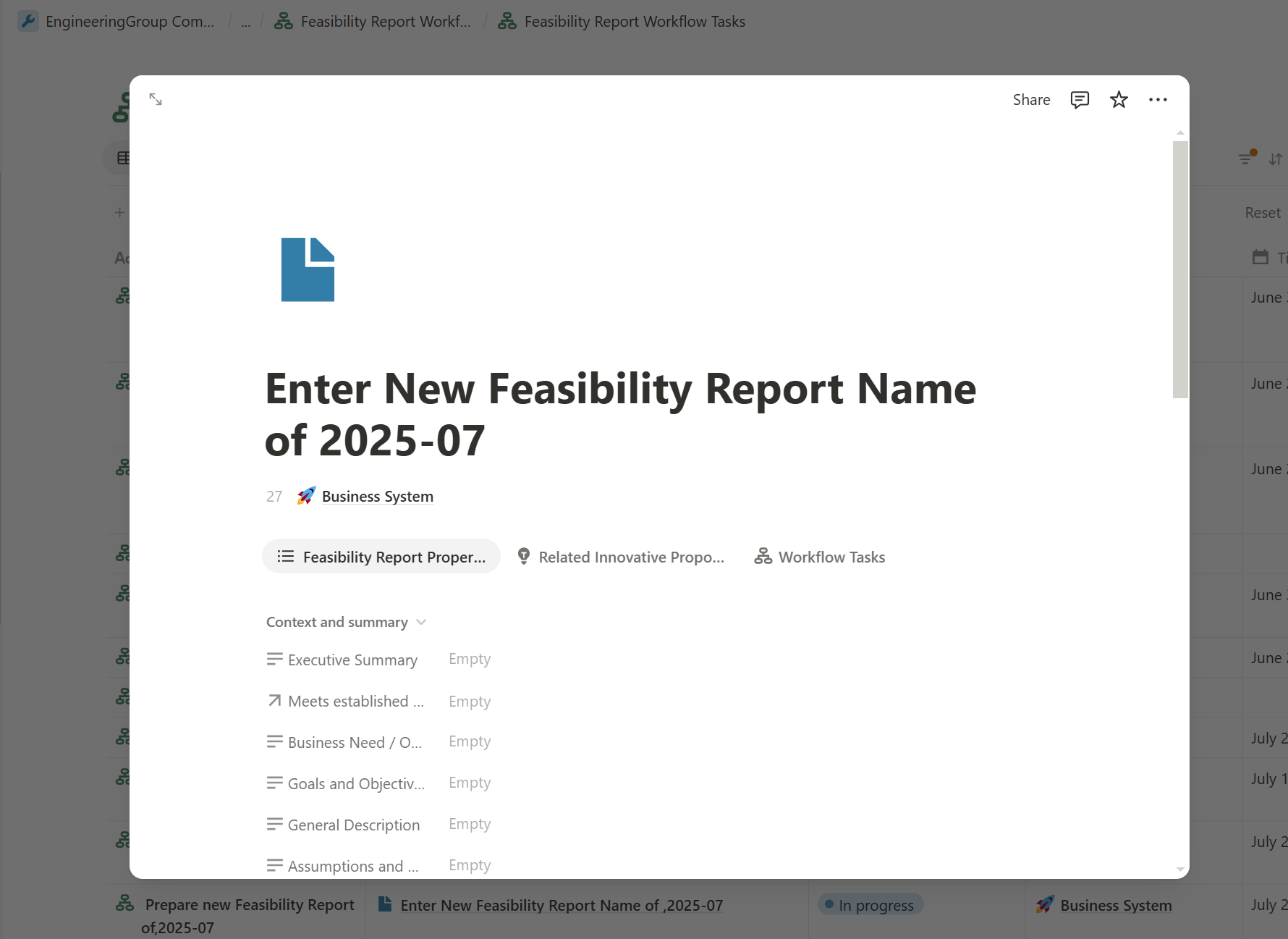
- Automatic opening of item forms from related databases — another powerful feature is the ability to automatically open a related database item form directly within the current task, providing seamless context and interaction. For example, in the task ‘Review Current Innovative Proposals and Make a Decision to Start Feasibility,’ when the user selects the ‘Start Feasibility Study’ option, the workflow logic automatically generates and opens a new Feasibility Report form. This allows the user to begin developing the document immediately without manually navigating to the Feasibility Reports database or creating a new entry — it’s created and presented on screen instantly.
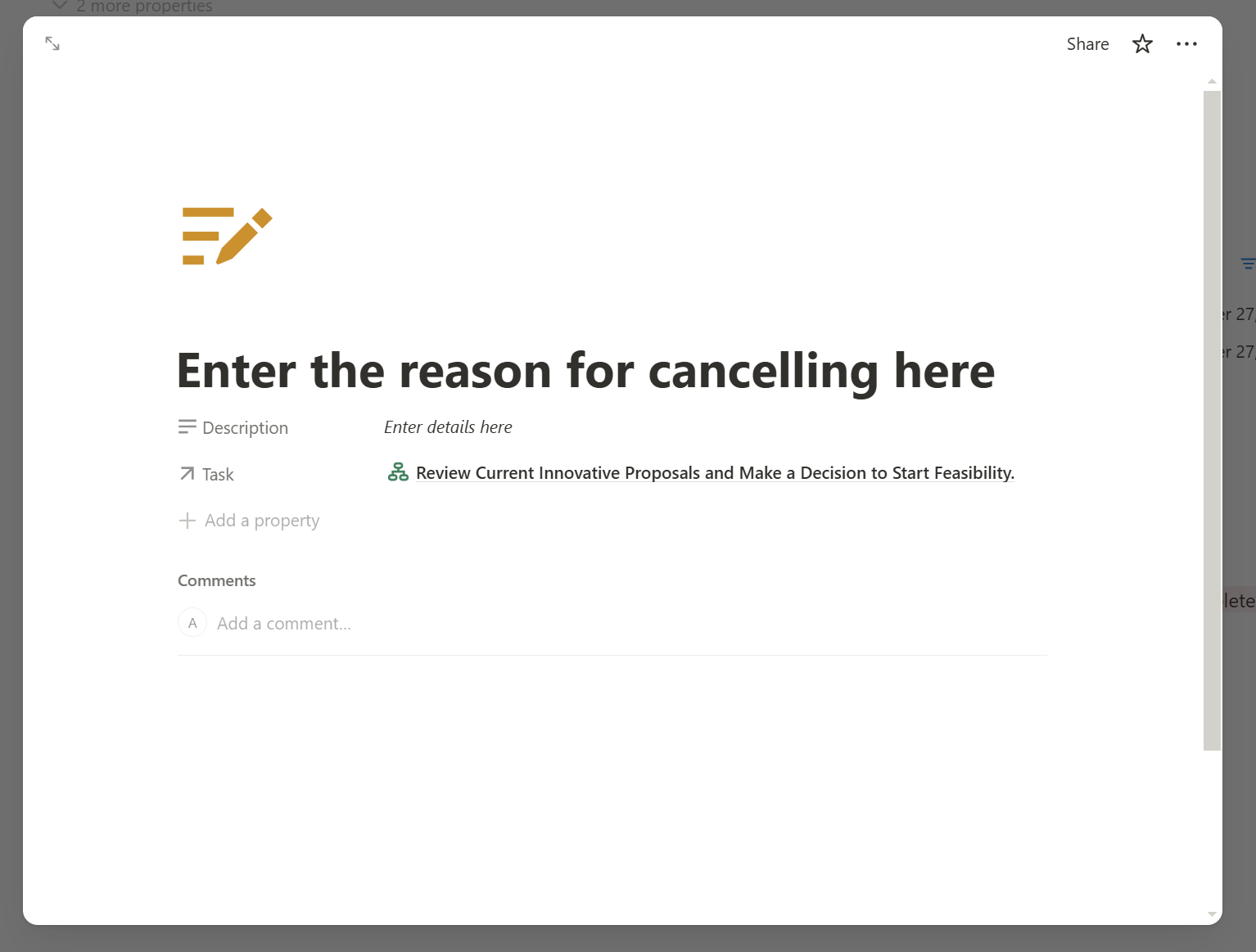
If the user chooses the opposite decision — ‘Cancel Feasibility Study’ — the workflow logic automatically generates a notes form to capture the reason behind the cancellation.
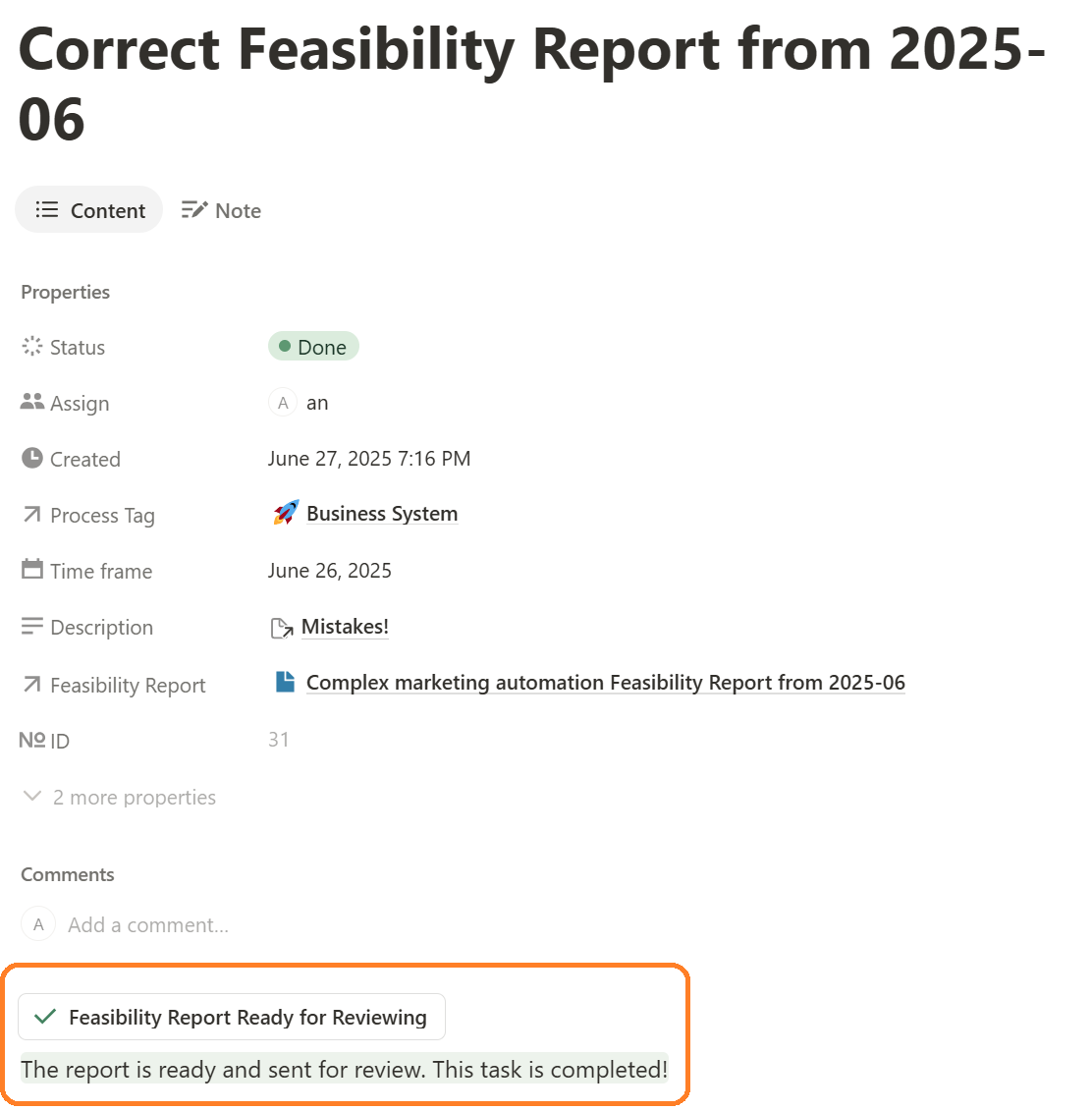
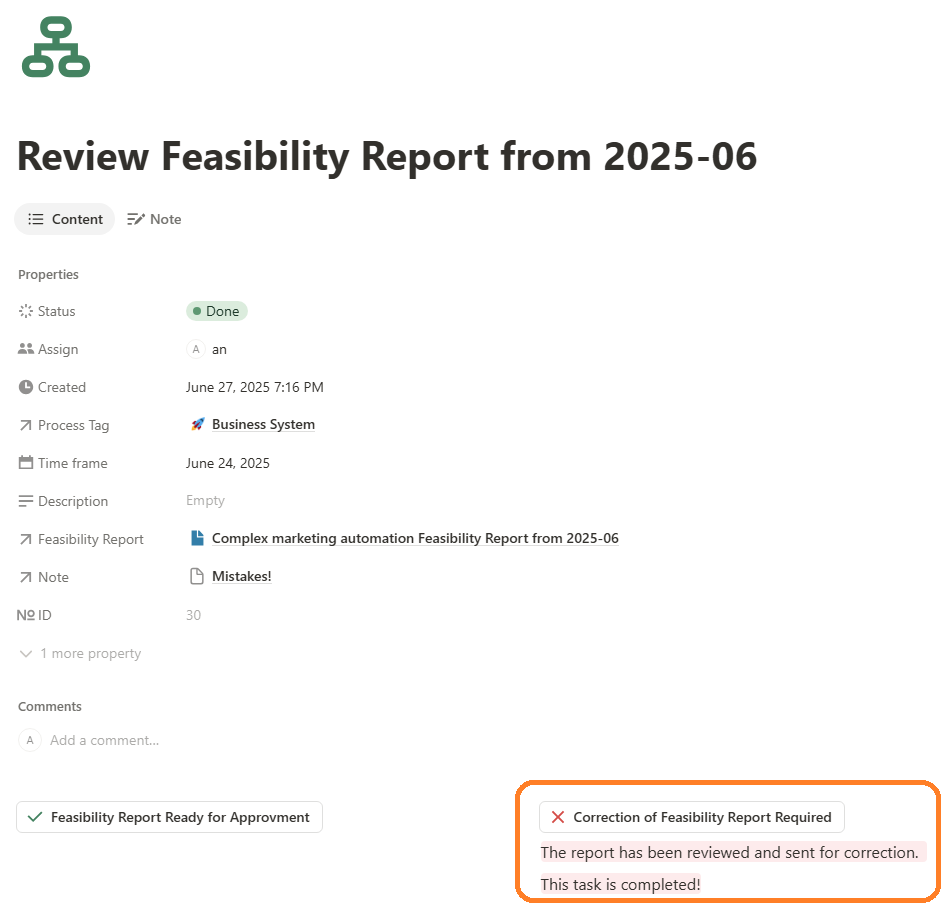
- Final action. It would be ideal if buttons could be disabled after a task is completed to prevent users from accidentally triggering the workflow again. Unfortunately, Notion doesn’t offer this functionality yet. A practical workaround is to display a message beneath the clicked button, informing the user of the result and confirming the task’s completion:
Tracking workflow with the task view
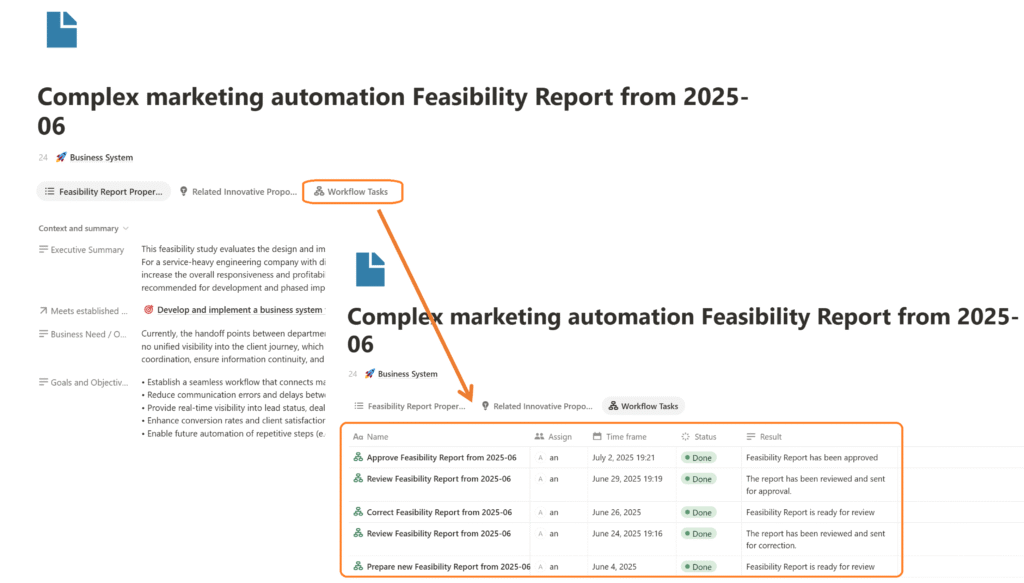
Notion’s capabilities offer a straightforward approach to tracking workflows through relationships, views, and layout customization. This method enables you to see the full lifecycle of a database item or document as it moves through a specific workflow.
Managing the Status of a Processing Object Using a Make.com Scenario
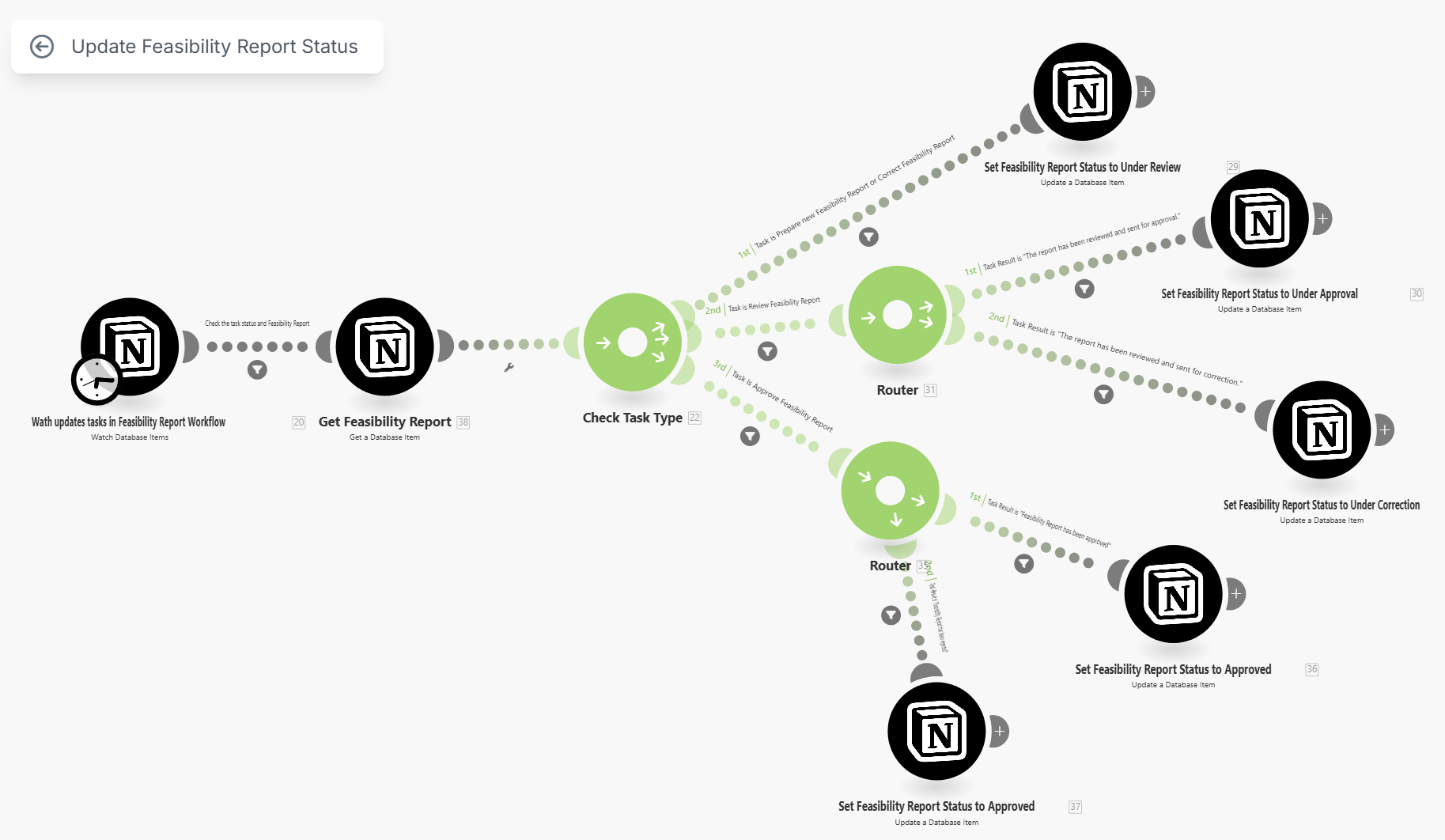
Another important feature that an automated workflow should include is automatic status updates for the processing object. In our case, the processing object is a Feasibility Report, which can have the following statuses: In Preparation, Under Review, Under Correction, Under Approval, Approved, and Rejected. Ideally, the status of the Feasibility Report should change automatically when a user completes a task and the configured Notion automations assign the next task or mark the workflow as complete. However, Notion automations do not allow this. This is where Make.com becomes very useful. We can easily create a Make.com scenario that monitors the results of workflow tasks and updates the Feasibility Report’s status accordingly.
Summary and Conclusions
Notion’s native automation features provide a fast and flexible way to develop collaborative workflows. To build effective and user-friendly workflow automation systems in Notion, the following best practices are recommended:
- Start with a detailed process description. Begin with a conceptual process diagram, then translate it into a workflow scenario, and finally into a BPMN-style workflow diagram. This structured approach improves clarity, aligns stakeholders, and lays the groundwork for successful automation.
- Use dedicated task databases. A good practice is to create a separate task database for each primary document or object being processed along a specific workflow. This is more effective than using a single general task list where tasks from multiple processes are mixed together. With the approach of dedicated task lists for each workflow, users can still conveniently see all their tasks from across the workspace using the “My Tasks” feature on the Notion home page. This method improves the efficiency of information delivery, enables tailored different views, enhances the overall user experience for various system stakeholders, and makes Notion workflow automation solutions more user-friendly.
- Customize tasks with templates. Use task templates to configure each workflow step with specific instructions, views, forms, and buttons. This allows each task type to follow its own logic and UI design.
- Embed contextual views into tasks. Insert inline views of related Notion databases (e.g. project details, documents, decisions) directly into task pages to give users the necessary context without switching views.
- Design functional buttons for each task type. Add dedicated buttons to each task template based on the business logic. This enables tasks to trigger actions like status changes, creating new records, or opening forms — all tailored to the current step in the workflow.
- Track workflow progress using task views. Use filtered and sorted task views to clearly show which tasks have been completed, are in progress, or are pending, and to monitor the full lifecycle of each database object as it moves through the workflow.
- Managing the Status of a Processing Object Using a Make.com Scenario. When Notion’s built-in automations fall short, you can leverage the capabilities of automation platforms like Make.com to solve these problems.
Implementing collaborative workflow automation in Notion significantly reduces manual work, minimizes errors, accelerates task execution, and improves team coordination — all of which contribute to lower operating costs, increased revenue, and ultimately, higher business profitability. By applying these best practices, businesses can build solutions to automate collaborative workflows quickly, easily, and cost-effectively.